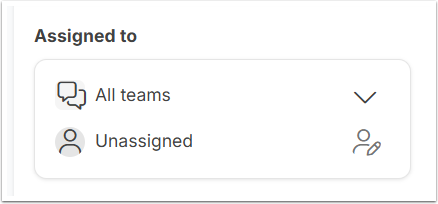
What are Teams?
Teams allow you to group users together based on their role or responsibilities within your business. Conversations can then be assigned to a team, ensuring messages are visible to the people best placed to handle them.
Common examples include:
- Guest Services - Guest enquiries, booking questions, and support requests
- Owners - Owner communications and property-related discussions
- Sales & Reservations - Direct booking enquiries and reservation support
- Operations - Housekeeping, maintenance, and operational requests
You can create as many teams as needed to match the way your business operates.
Create a Team
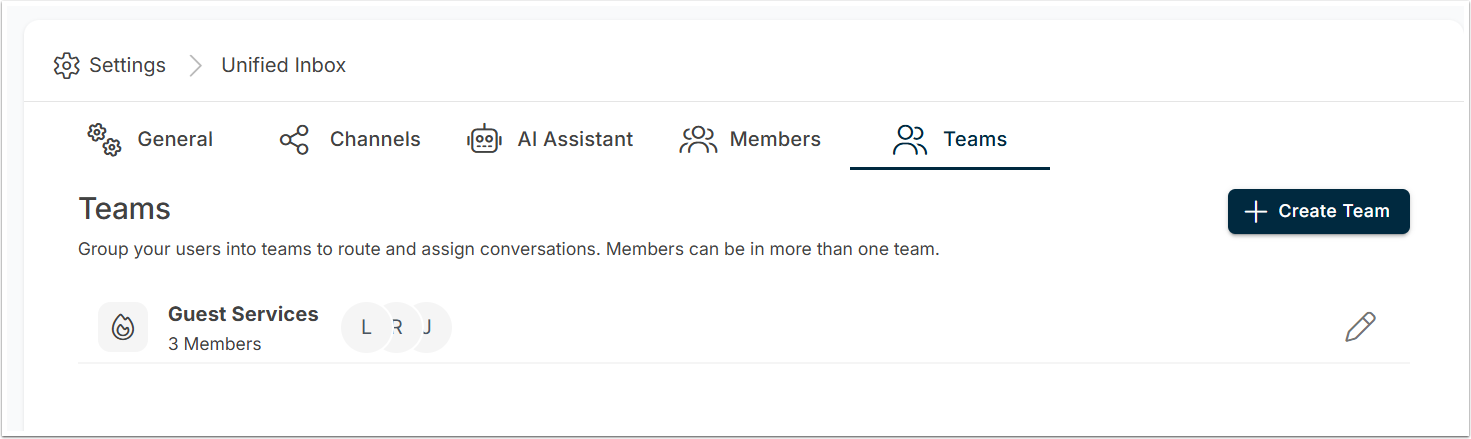
1. Navigate to Settings >Teams
2. Click Create Team:
3. Add your team name, description and choose your Icon:
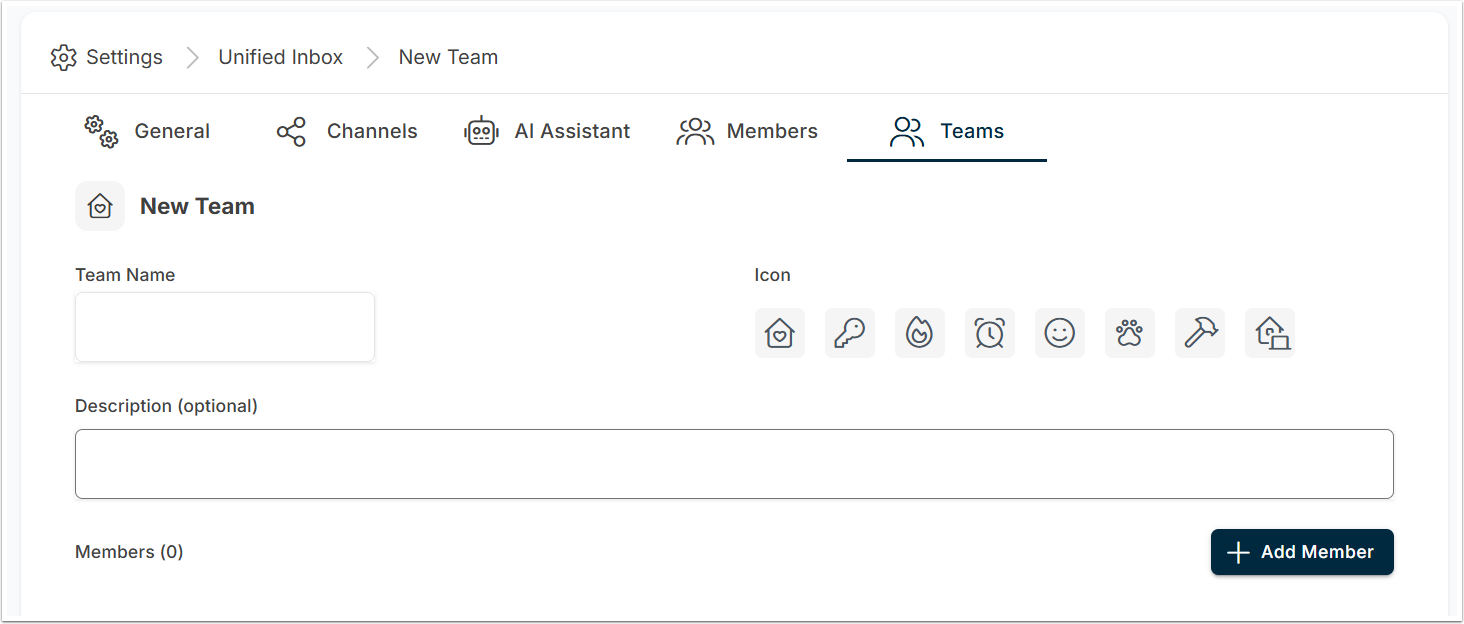
The new team will now be available when assigning conversations.
Adding Members to a Team
Once a team has been created, you can add users to it.
- Open Settings > Teams.
- Select the team you want to manage.
- Click Add Member.
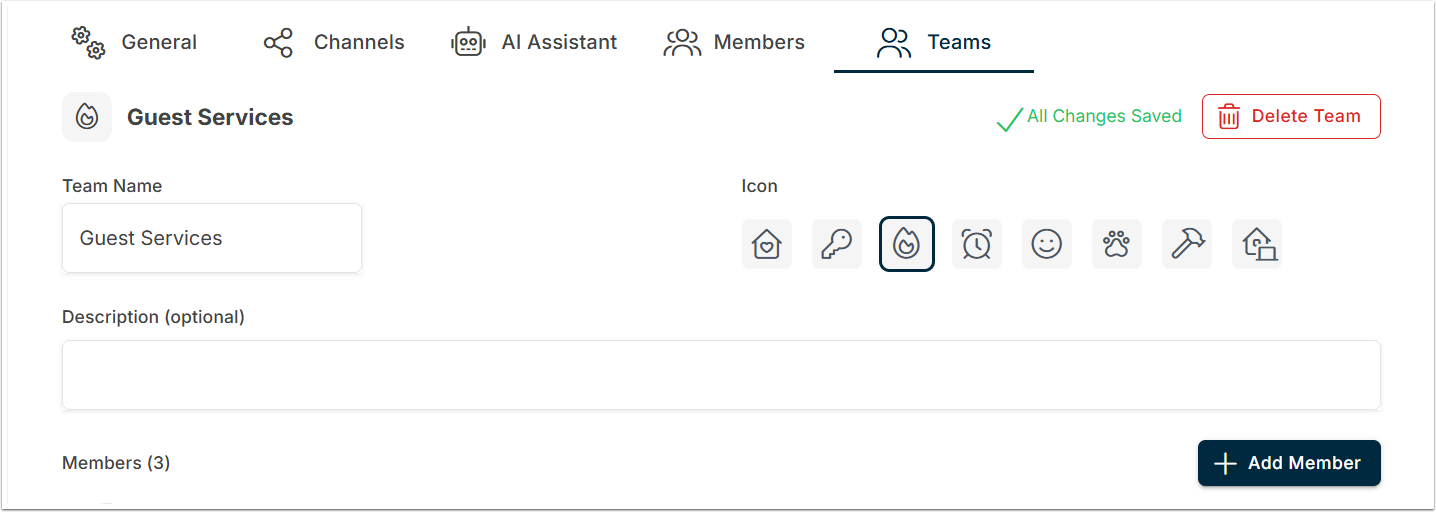
4. Choose one or more users from the list and click Add Member.
Assigning Conversations
To allocate ownership to a specific Team or Member:
- Open the conversation.
- Select to assign a Team or Member.