Replying to an UpFront Review
1. To reply to a review a guest has submitted, to clarify a detail or simply to thank them, go to Integrations > UpFront Review > Reviews > Property Name > click View on the right hand side.
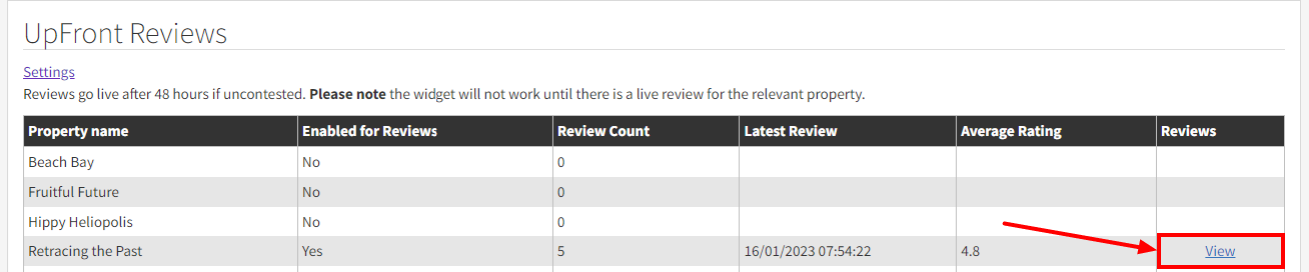
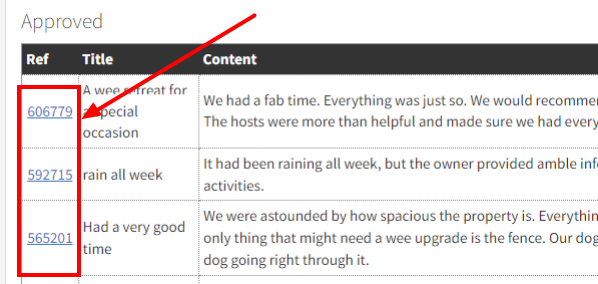
2. This gives you a list of all reviews for the property.
Click on the reference number on the left hand side of the review number.
3. Within the individual review, click Add Reply. Write your reply and click the Add reply button.
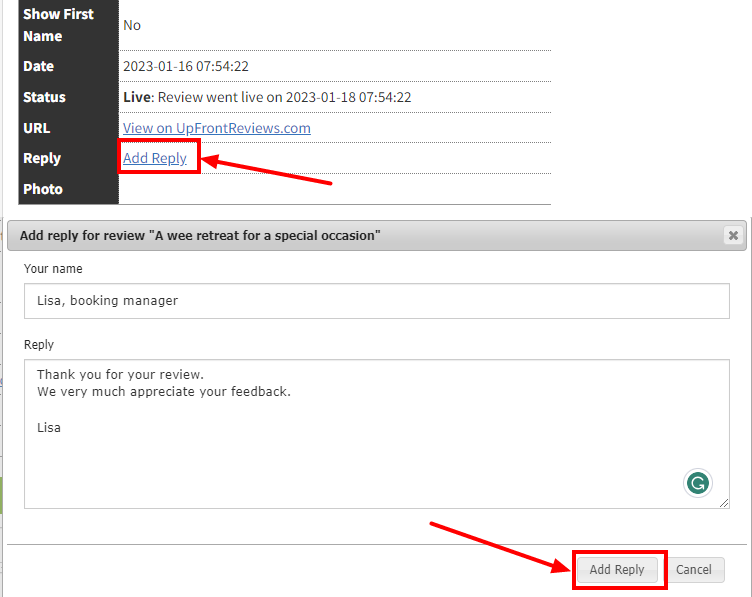
Your reply will appear in two different different places:
1) in SuperControl
The Add reply box will change to Reply. Your answer will be showing in the box.
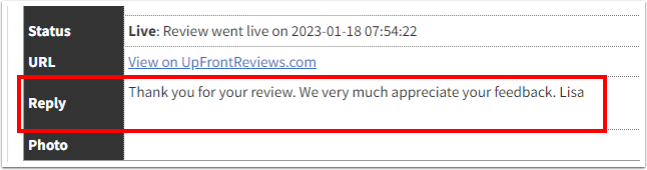
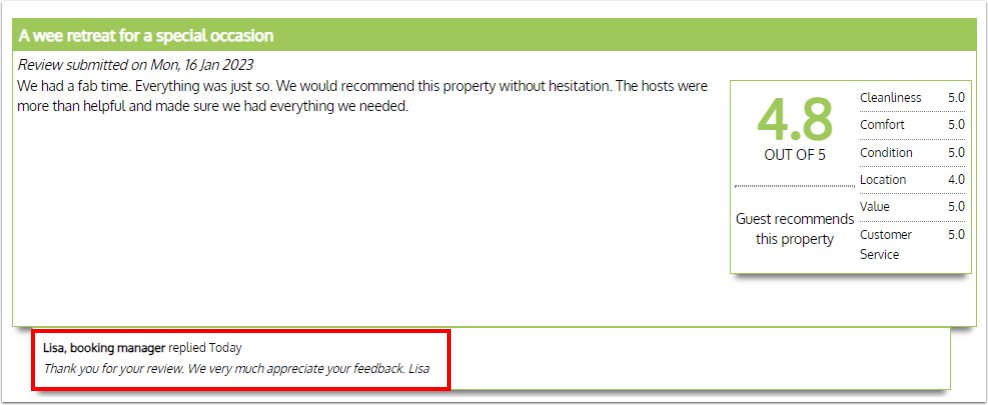
2) below the original review
Requesting the removal of an UpFront review
To request the removal of a review, do the following:
1. Go to Integrations > UpFront Review > Reviews > Property Name > click View on the right hand side.
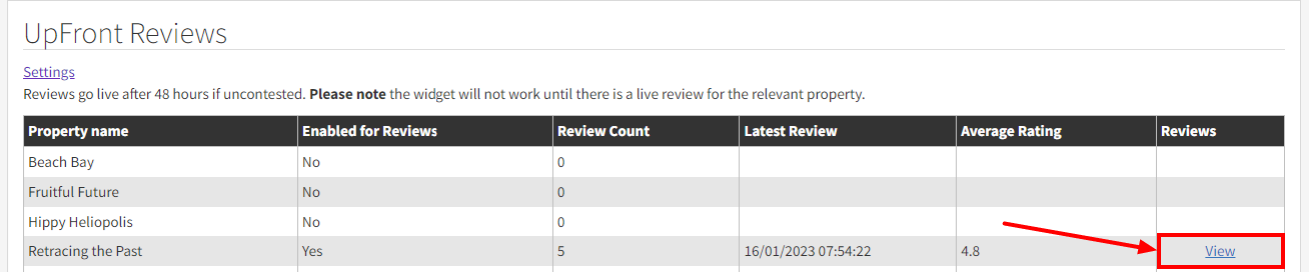
2. This gives you a list of all reviews for the property.
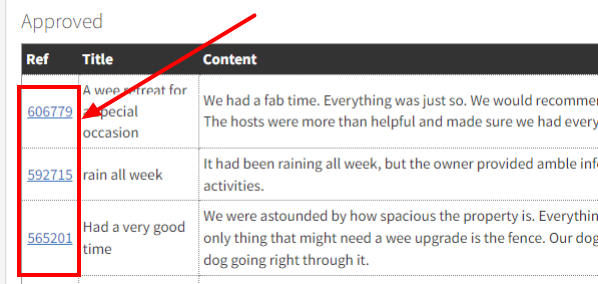
Click on the reference on the left hand side of the review number.
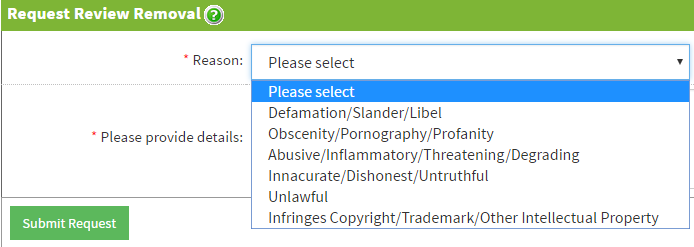
3. Scroll down to the bottom of the page where you will see the Request Review Removal section.
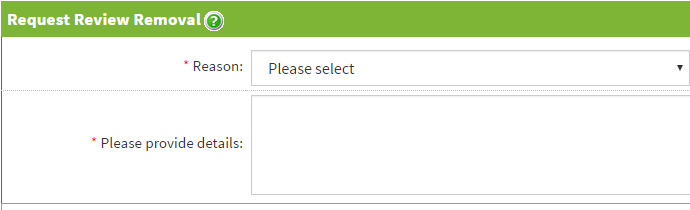
4. Select the reason for the removal of the review, provide further details in the space provided, then click Submit Request.
5. You will receive a response to your request from the Client Care team by email.