Use this guide after notifying SuperControl that you do not intend to renew your current subscription term.
Before your account is archived, work through each section below to ensure your data is retained and all third-party connections are removed correctly.
Before you begin
Before starting this checklist:
- Confirm your renewal date with the SuperControl
- Ensure you have provided at least 30 days' written notice to [email protected] before your renewal date and received an acknowledgement of receipt.
Step 1: Download Your Database
Why? All personal data will be removed or anonymised 60 days after your renewal date, in line with our data retention policy.
How?
- Go to Admin > Maintenance > Download database.
- Save the file securely to your local system.
- See this Help article for more details: How can I download all of my SuperControl data?
Step 2: Disconnect Third-Party Integrations and Channels
Channels
Make sure that all connections between SuperControl and any third party channel you are currently connected to are removed. This include
Airbnb
To disconnect your property from Airbnb follow the steps below.
How do I remove the connection between SuperControl and Airbnb?
In order to disconnect the property from Airbnb in SuperControl, go to Intergrations > Channel manager > International > Airbnb.
To the right of the field showing the Listing ID are four icons. Click the one on the right hand side.
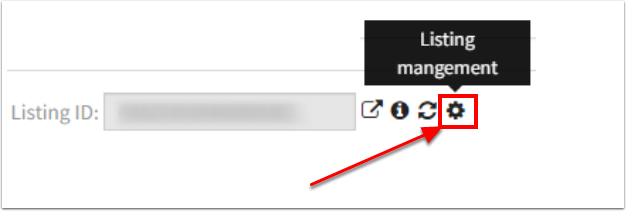
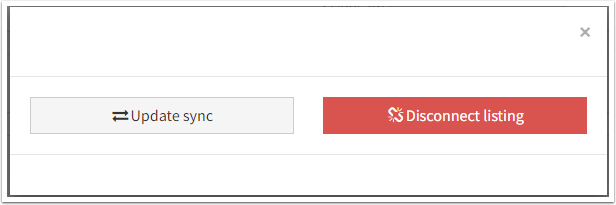
A pop-up will appear to give these to options (see below).
Select Disconnect listing.
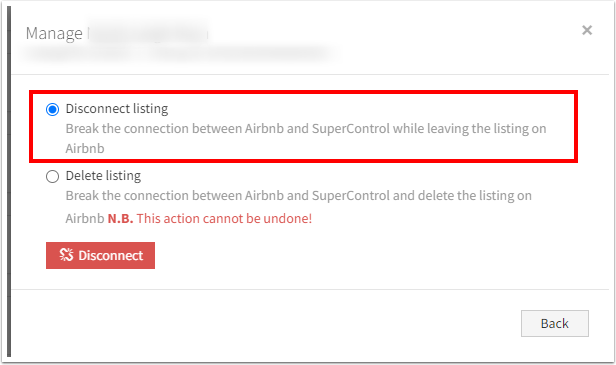
In the next dialog there is the option to either disconnect the property, but leave the listing on Airbnb, or delete the property from Airbnb.
Select to disconnect the listing.
How do I remove the connection between Airbnb and SuperControl?
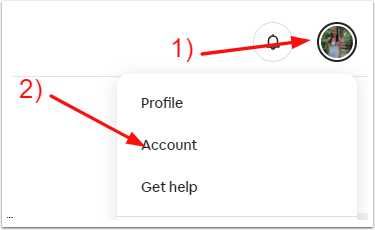
1. Log into Airbnb and click the photo/ icon in top right and go to “Account”.
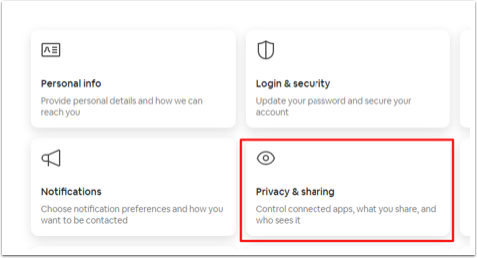
2. Go to “Privacy & sharing”.
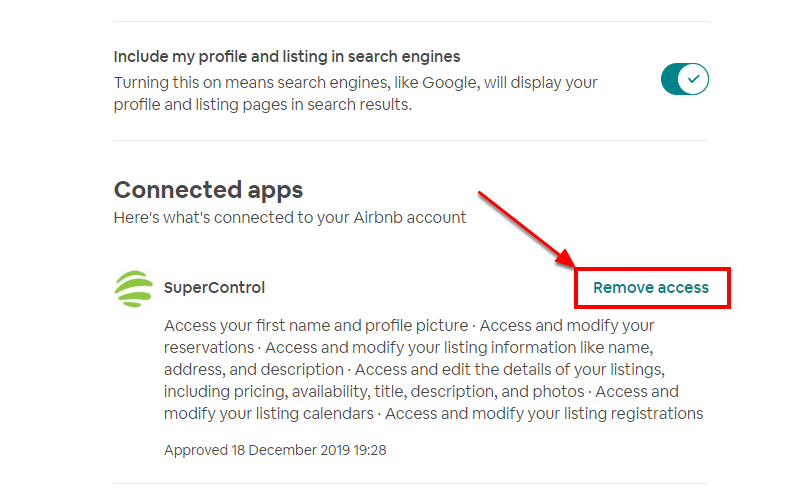
3. Click “Remove access” in the 'Connected Apps' Section
Booking.com
Disconnecting in SuperControl
- Go to Integrations > Channel manager > International > Booking.com
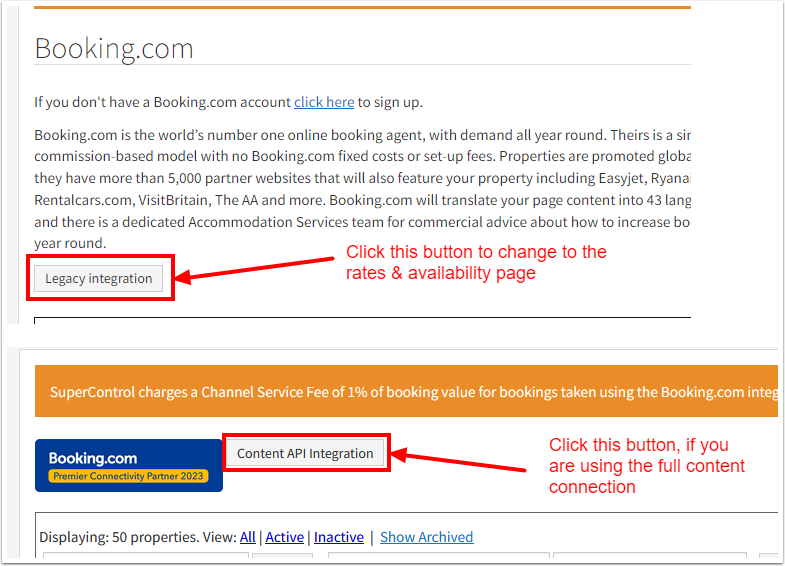
Rates & availability only (legacy)
- Search for the property you wish to disable.
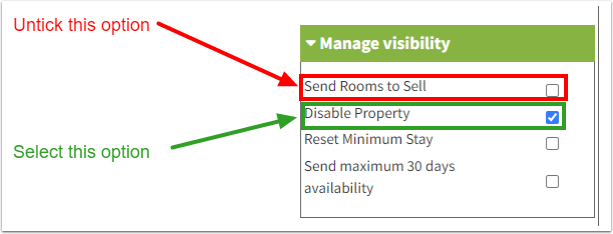
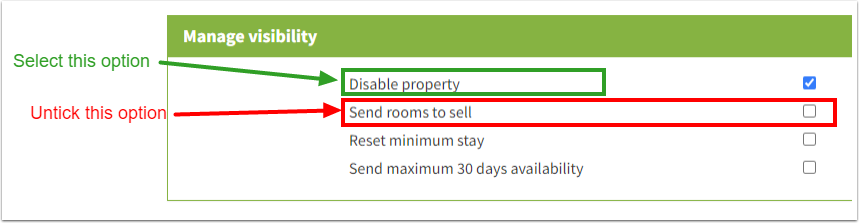
On the right-hand side, click the heading of the Manage Visibility section, tick Disable property and untick Send rooms to sell.
- Scroll to the bottom of the page and click Save.
- You need to forward the changes to Booking.com to update the property at their end as well.
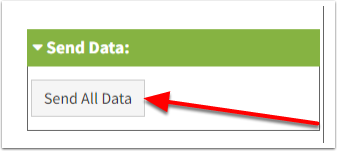
To do that, click Send all data to the right of the property.
Full content (API)
- Search for the property you wish to disable.
- Click Configuration to the right of the property.

- On the page that opens, tick Disable property and untick Send rooms to sell.
- Scroll to the bottom of the page and click Save.
After the changes have been saved, you can close this page again. - To update the data on Booking.com, make sure you are on the channel manager page.
If you are not sure, if you are on the right page, simply go to Integrations > Channel manager > International > Booking.com.
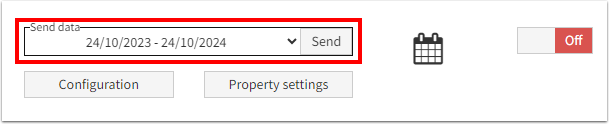
In the section Send data, select the first date range and click Send. Repeat the same for the second
date range.
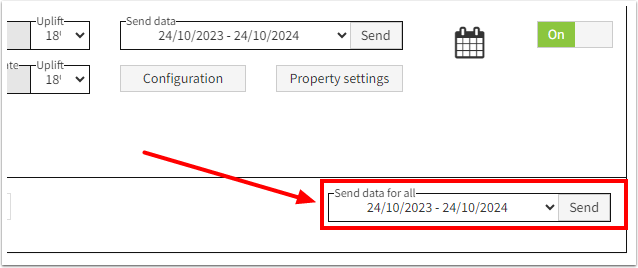
If you have updated several properties, you can also send the data for all your properties at once. Go to the bottom of the list of properties and click Send for both date ranges.
Disconnecting in the Booking.com extranet
Once the properties have been disabled you can sever the connection in the Booking.com extranet.
- Log into your Booking.com account.
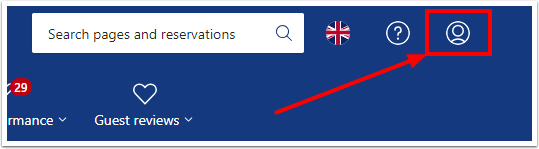
- Go to the most right hand side icon in the top right hand corner of the screen.
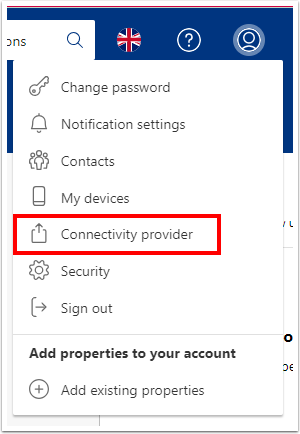
- Select Connectivity provider from the drop down menu.
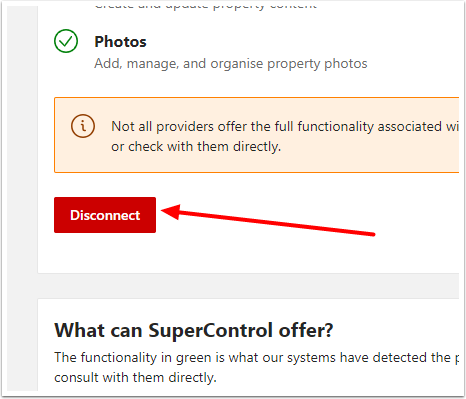
- Scroll down until you see the red Disconnect button.
If you not only want to disconnect the property, but also want to delete it from Booking.com altogether, please see this Booking.com article how to delete a room (property) directly in the extranet.
(Select the link 3. How to delete a room or unit from your property)
Cottages.com
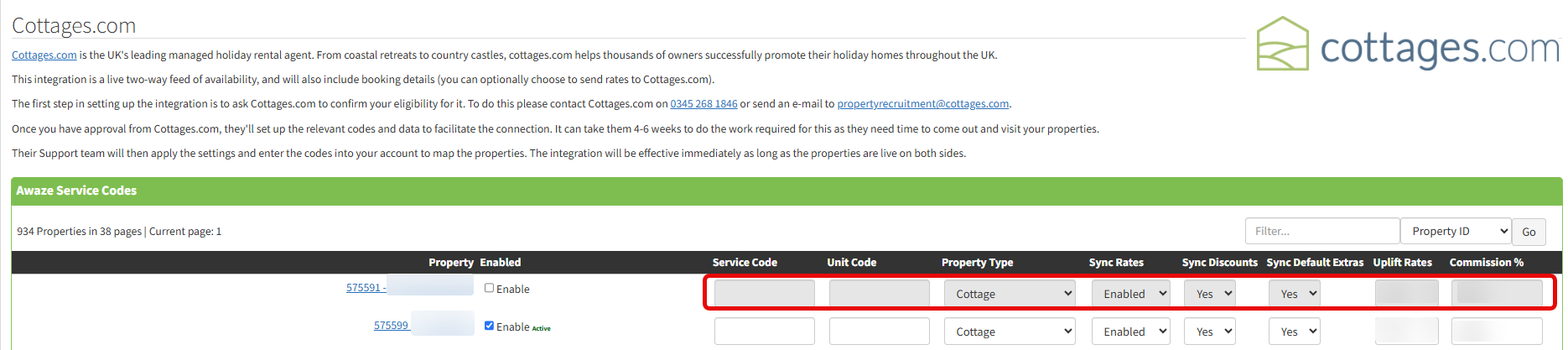
1. In SuperControl go to Integrations > Channel manager > International > Cottages.com
2. Untick the box in front of Activate Property.
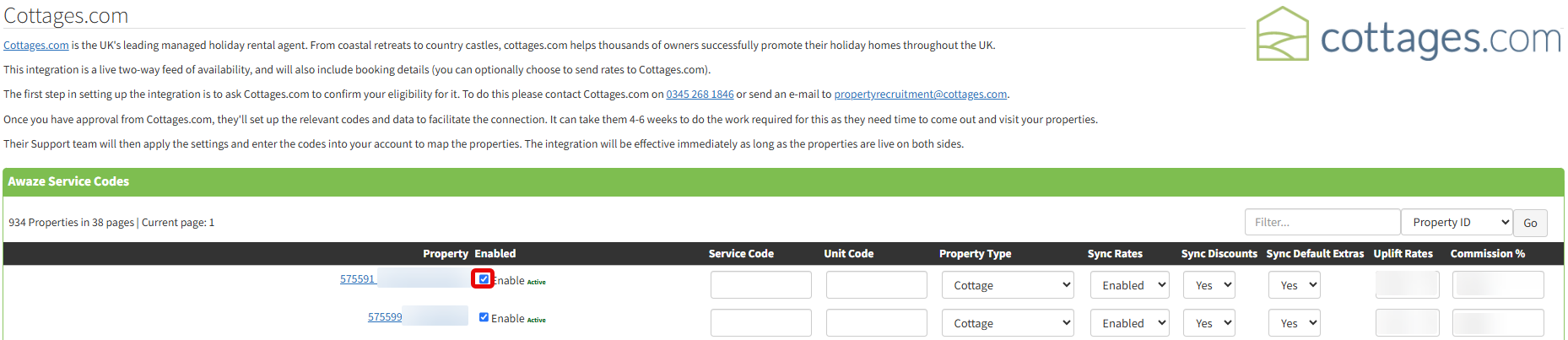
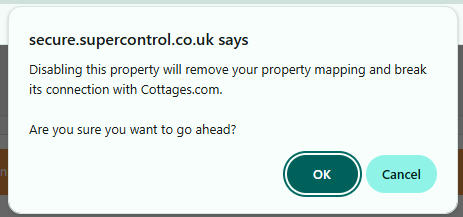
Once the box is unticked, SuperControl will stop sending rates, availability and booking information to Cottages.com.
Vrbo (HomeAway)
1. In SuperControl go to Integrations > Channel manager > International > Vrbo.
2. Untick the box in front of Activate Property.
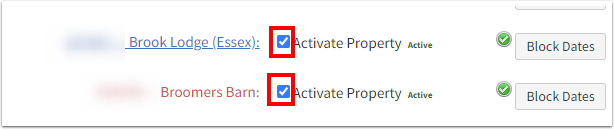
Once the box is unticked, Vrbo is directly notified that you wish to disconnect the property.
Expedia
Please inform us directly when you are connected to Expedia as we need to remove the sync.
Please also contact Expedia support directly to inform them that they need to disconnect your property.
Any other channels
If you are connecting to any other channels, e.g. PetPyjamas etc., please contact us and the channel, so that we can disconnect you
Step 3: Remove iCal Connections
If you have any third party sites linked to SuperControl using iCal links, you need to remove the links in SuperContol as well as the third party.
Removing the link in SuperControl
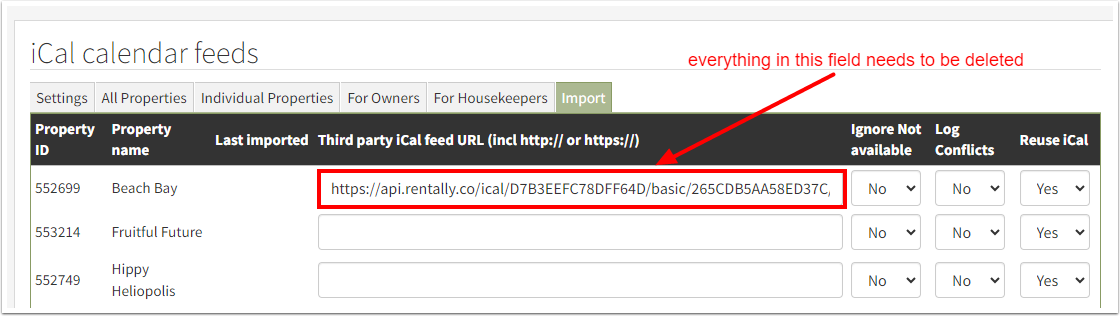
1. Go to Integrations > Admin tools > iCal Feeds > Import.
2. Delete the link
Step 4: Remove Cross-updating Connections
If your SuperControl account is set up to cross-Update with another SuperControl account (i.e. an Agency, who markets your properties on your behalf as well), please let us know, so we can remove these links.
Step 5: Remove Calendar & UpFront Review Widgets
You will need to remove the widgets used to show the SuperControl calendar and any reviews you have been receiving using UpFront Review on your website.
If the widgets are not removed, your guest will still see them, but they won't show any (accurate) data any longer once your SuperControl account has been archived.
Step 6: Review Future Bookings and Automated Emails
1. Go to Emails/Letters > Automated emails/SMS.
2. In the drop down menu on the right hand side select Delete group > Go.
Click OK in the pop-up.
If the widgets are not removed, your guest will still see them, but they won't show any (accurate) data any longer once your SuperControl account has been archived.
Step 7: Review XCover Obligations
If you have XCover Refund Protection enabled on your account, you may have guests who have already chosen to add XCover to their booking and have paid you for this protection. In order to keep the cover active for these bookings it’s important that you remit payment for XCover invoices to ensure that you can retain your 20% commission.
Step 8: Contact Payment Processor Provider
If you no longer require the services of your payment processor, please contact them directly to discuss the further steps.