What will I need?
Before starting, make sure you have access to:
- Your SuperControl login details
- A compatible mobile device
- An internet connection
Access to SuperControl on a separate screen so you can scan the QR code
Why use MFA?
Multi-Factor Authentication (MFA) adds an extra layer of protection to your account.
After entering your username and password, you'll be asked to verify your identity using a one-time code sent to your mobile phone.
This helps protect your account, guest information, booking data and business settings, even if someone obtains your password.
What is an authenticator app?
An authenticator application generates secure verification codes on your device.
Benefits include:
- Codes are generated instantly
- Useful when travelling
- Less reliance on text message delivery
- Faster sign-in experience
- Supports modern authentication standards
When signing in to SuperControl, you enter your username and password as normal. You are then asked for the code displayed in the authenticator app to confirm it is really you.
Set up MFA Using an Authenticator App
- Choose your authentication method
As part of our authentication improvements, SuperControl supports multiple ways to verify your identity.
You can choose whichever authenticator app you prefer.
Popular authenticator apps examples include:
Microsoft Authenticator Google Authenticator Authy 


- Download an Authenticator Application
Using an iPhone or iPad
Open the App Store.

- Search for your preferred authenticator app.
- Download and install your preferred app.
Using an Android device
- Open the Google Play Store
- Search for your preferred authenticator app.
- Download and install your preferred app.
Connect your Authenticator App to SuperControl
- Sign in to SuperControl
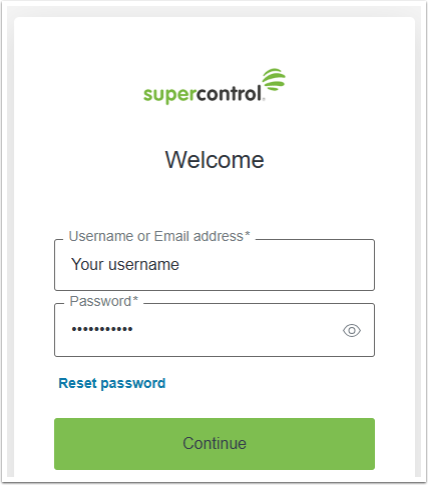
Sign in to SuperControl using your usual email address or username and password.
- Choose your MFA method
When prompted to set up Multi-Factor Authentication, select Authenticator App as your preferred verification method.
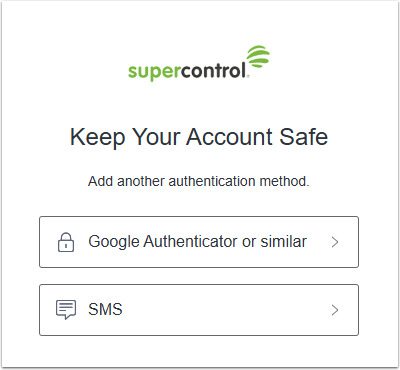
Choose the MFA option you would like to use.
- Display the QR code
SuperControl will display a QR code on screen.

Keep this screen open while you complete the next steps.
- Open your authenticator app
Open the authenticator app on your mobile device.
Select Add Account or Scan QR Code (wording may vary depending on the app you are using).
- Scan the QR code
Use your phone's camera to scan the QR code displayed by SuperControl.
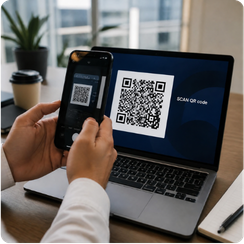
Once scanned, the authenticator app will automatically create a new SuperControl entry.
- Enter the verification code
Your authenticator app will begin generating a six-digit security code.
Enter the code displayed on your mobile device into SuperControl to complete the setup.
- Save your settings
Once the code has been successfully verified, MFA will be enabled for your account.
You're all set!
Your authenticator app is now linked to your SuperControl account.
Signing in with an authenticator app
After setup, signing in is quick and simple:
- Enter your email address and password.
- Open your authenticator app.
- Locate the SuperControl code.
- Enter the six-digit code displayed.
- Complete the sign-in process.
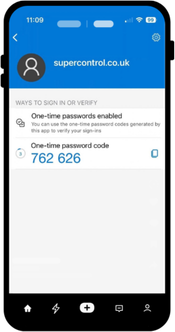
The verification code changes automatically every 30 seconds to help keep your account secure.
Frequently Asked Questions
Which authentication method should I choose?
If available, authenticator applications are often preferred because they do not rely on mobile phone reception and can provide a more consistent sign-in experience.
Can I still use SMS verification?
Yes, if SMS verification is available for your account, you can choose the authentication method that works best for you.
However, we recommend considering an authenticator app if you regularly experience poor mobile reception or delays receiving SMS messages.
What happens if I change my phone?
You may need to reconnect your authenticator app on your new device.
If you are unable to access your existing authentication method, please contact SuperControl Support for assistance.
Can I disable MFA?
We strongly recommend keeping MFA enabled on all SuperControl user accounts.
MFA provides an additional layer of protection for your business, your guests' information and your account data. Whether you choose SMS verification or an authenticator application, using MFA helps reduce the risk of unauthorised access.
As additional authentication options become available, we encourage users to select the method that best suits their needs rather than disabling MFA altogether.
Related Articles
Understand MFA
- What Is Multi-Factor Authentication (MFA)?
Security improvements
- Upcoming Improvements to How You Sign In to SuperControl
Stay secure
- Password & Account Security Best Practices
Need help?
- Troubleshooting Login Issues