Two-Factor Authentication (2FA) must be used to prevent unauthorised access to your account.
With 2FA enabled, your account will be more secure when logging in, updating personal details, or accessing sensitive data. An additional verification step will be required during login. Instead of just entering your credentials, you’ll also need to input a unique, one-time code sent to you via SMS. This ensures that even if someone obtains your password, they won’t be able to access your account without the verification code.
How do I enable 2FA?
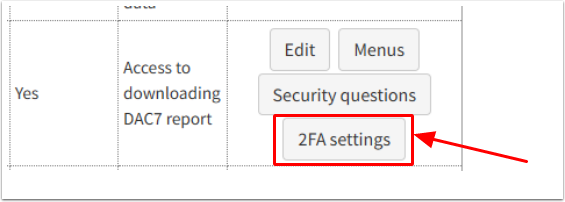
- Go to Admin> Login Users > 2FA Settings
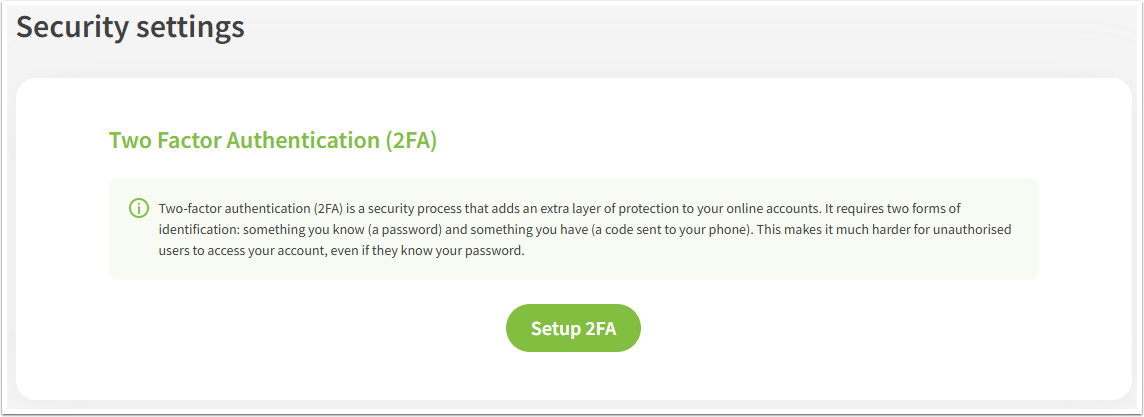
- Click Setup 2FA on the next page.
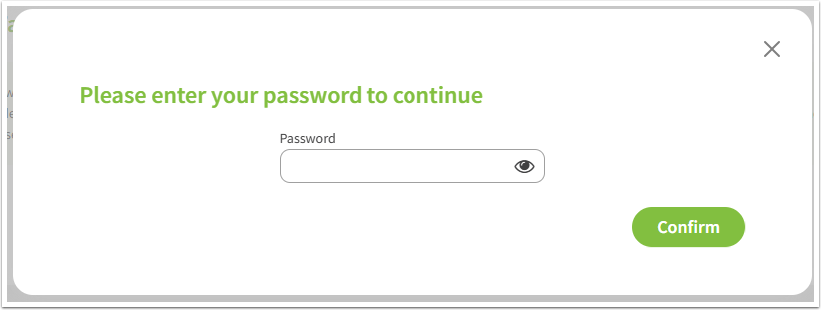
- Enter your password when prompted.
- Click Confirm.
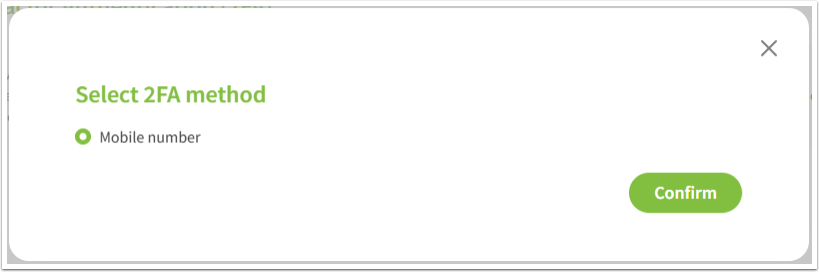
- Select with the 2FA method.
- Click Confirm.
You might see here Mobile number, SMS, either or both.
- Enter the mobile number you want to use to receive the 2FA codes.
- Click Confirm.
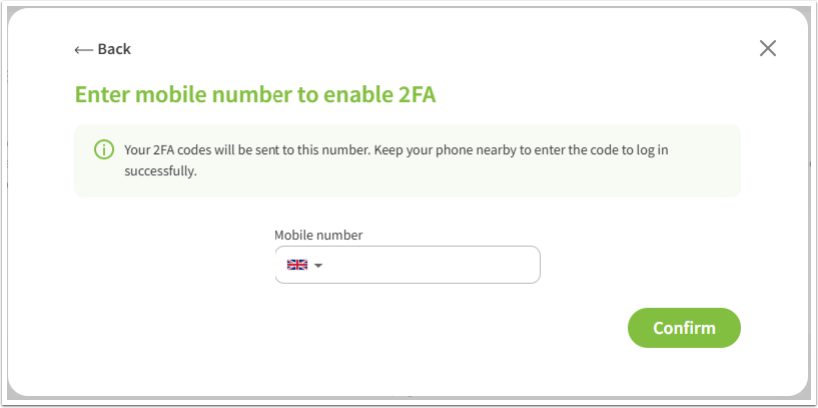
A code will be sent to this mobile number.
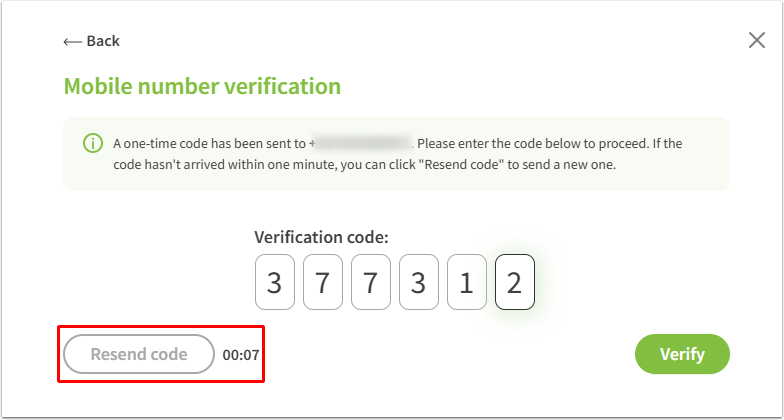
- Add the received code into boxes.
When a number is being entered the cursor will automatically jump to the next field. - Click Verify.
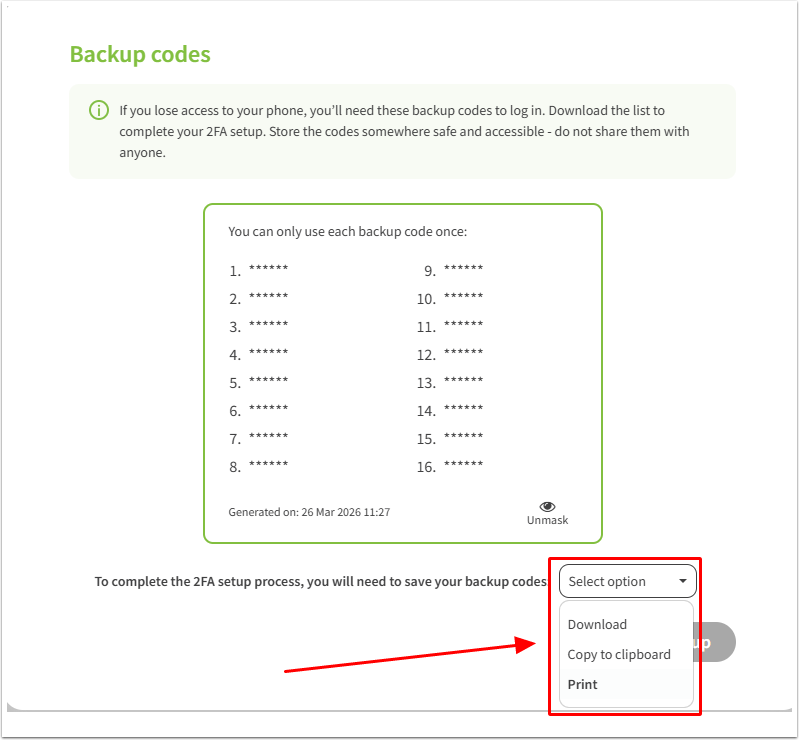
On the next page you are requested to download and store a number of backup codes. These codes can be used when you are unable to receive the code via the mobile network for any reason.
- Select if you want to
- Download
- Copy to clipboard
- Print
the backup codes. - Paste the codes into another application or store them somewhere, where you will have access to.
- Click Complete setup.
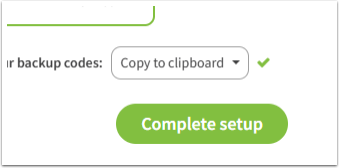
You will get a confirmation that the 2FA jas now been setup.
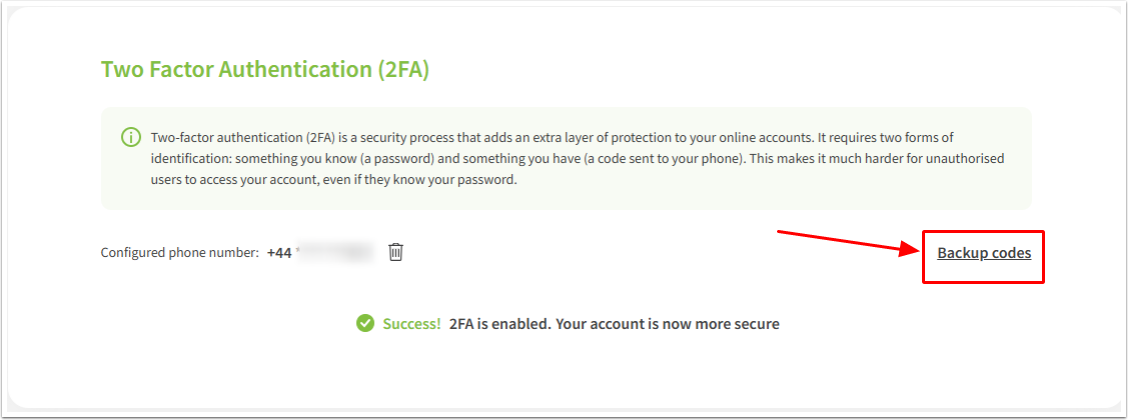
Here you have again the option to access the backup codes.
Retrieving the backup codes again
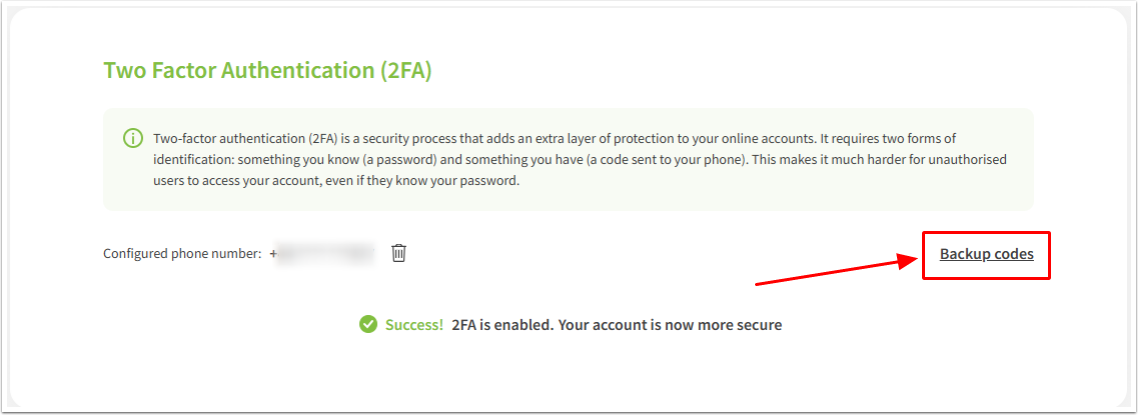
While still on the confirmation page you can retrieve the backup codes again, should you have missed this step during the 2FA setup.
- Click the Backup codes link.
- Enter your password when prompted.
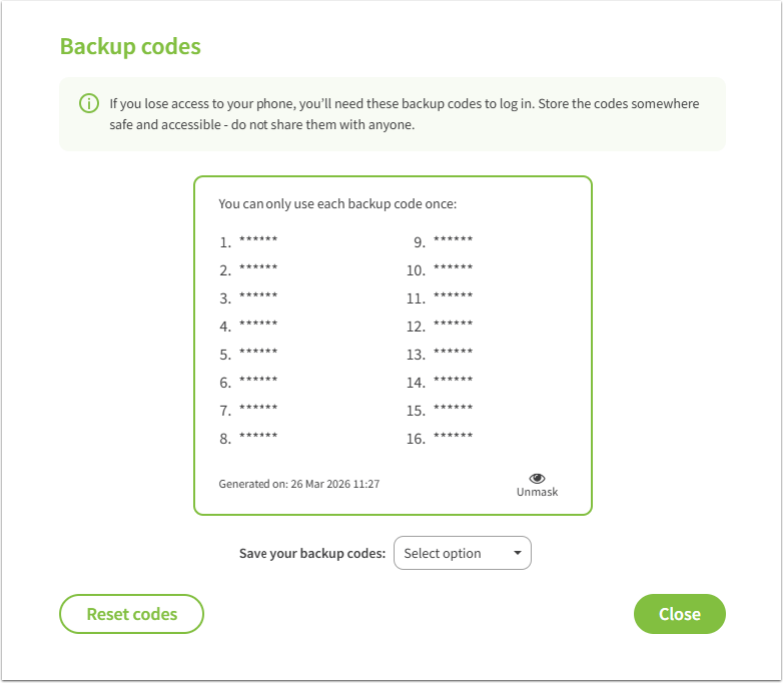
- Save or reset the backup codes.
- Click Close.
Which parts of my account does Two Factor apply to?
If Two Factor Authentication is enabled on your account this is where you will be prompted to enter an SMS code:
- When logging into your account.
- When changing any personal details in Admin> General details. i.e email, telephone number and address.
- When downloading your database in Admin> Maintenance> Download Database.
Remember this device for 30 days?
Ticking this option means we will remember the device and the browser you are using and we will not ask you to validate via SMS for another 30 days. As long as nothing changes with your device / browser and our cookies remain.
How to use a backup code
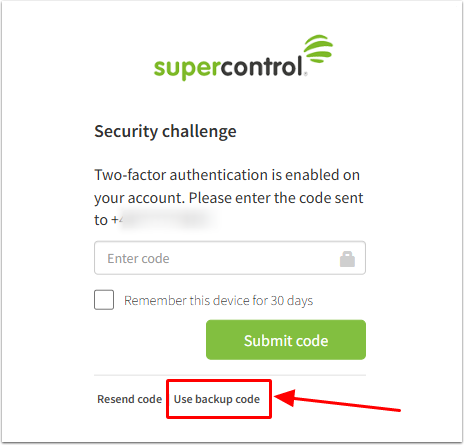
If you can't receive a code due to poor or missing mobile network cover, you can use one of the downloaded backup codes.
- Enter you user name and password as usual.
- Select to Use backup code on the next screen, instead of entering a code.
- Enter the backup code.
- Click Submit code.
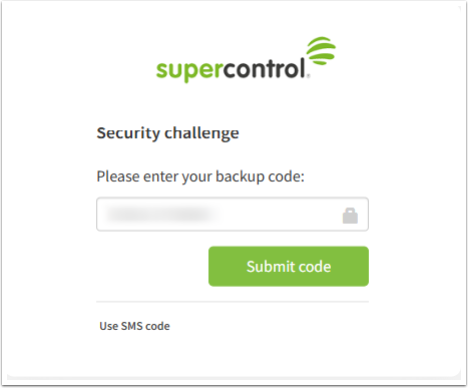
The screen might come up and then you will be logged in.
How to download new backup codes
To download a new set of backup codes you need to be logged into your SuperControl account.
- Go to Admin> Login Users > 2FA Settings
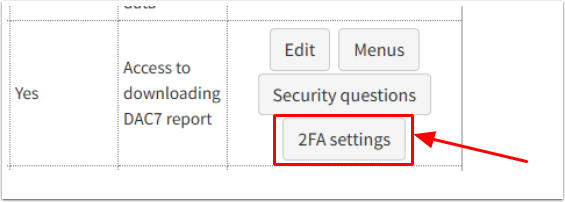
- Click Backup codes on the next page.
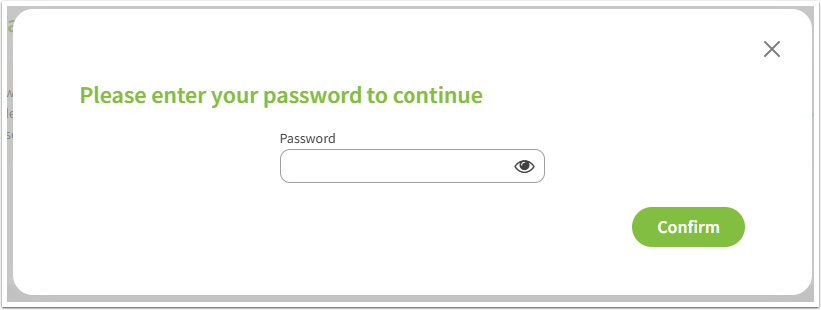
- Enter your password when prompted.
- Click Confirm.
You will be able to see how many codes are still left as any already used ones are marked as such.
- Click Reset codes.
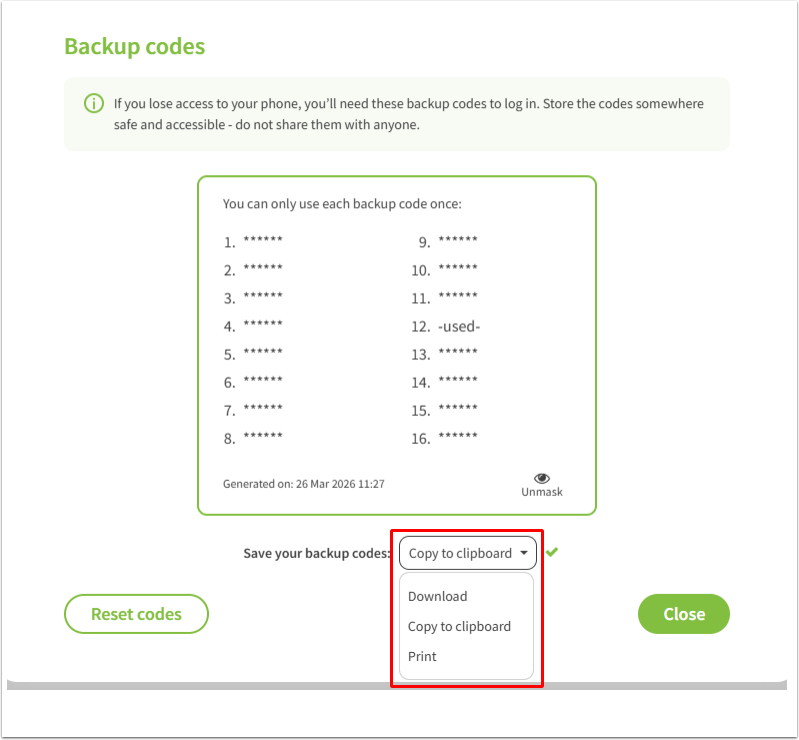
- Select if you want to
- Download
- Copy to clipboard
- Print
the backup codes. - Paste the codes into another application or store them somewhere, where you will have access to.
- Click Close.