What will I need?
Before starting, make sure you have access to:
- Your SuperControl login details
- A compatible mobile device
- An internet connection
- Access to SuperControl on a second screen or device so you can scan the QR code
Why use MFA?
Multi-Factor Authentication (MFA) adds an extra layer of protection to your account.
After entering your email address and password, you'll be asked to complete an additional verification step.
When using an authenticator app, you enter the time-sensitive code generated by the app to confirm your identity.
This helps protect your account even if someone else obtains your password.
What is an authenticator app?
An authenticator application generates secure verification codes on your device.
Benefits include:
- Codes are generated immediately
- Does not rely on receiving an SMS
- Does not rely on mobile phone reception
- Useful when travelling
- Provides a convenient alternative to SMS verification
When signing in to SuperControl, open the authenticator app and enter the current code displayed for your SuperControl account
Set up MFA Using an Authenticator App
- Choose your authentication method
As part of our authentication improvements, SuperControl supports multiple ways to verify your identity.
You can choose whichever authenticator app you prefer.
Popular authenticator apps examples include:
Microsoft Authenticator Google Authenticator Authy 


I don't already have an authenticator app
Download an Authenticator Application
Using an iPhone or iPad
Open the App Store.

- Search for your preferred authenticator app.
- Download and install your preferred app.
Using an Android device
- Open the Google Play Store

- Search for your preferred authenticator app.
- Download and install your preferred app.
- Connect your Authenticator App to SuperControl
- Sign in to SuperControl
Sign in using the email address associated with your SuperControl login and your password.
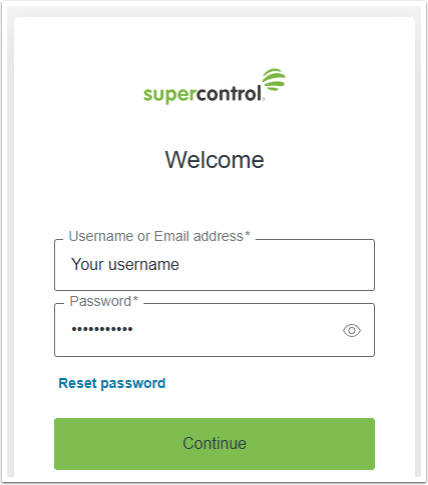
- Choose your MFA method
On the Keep Your Account Safe screen, select:
Google Authenticator or similar
When prompted to set up Multi-Factor Authentication, select Authenticator App as your preferred verification method.
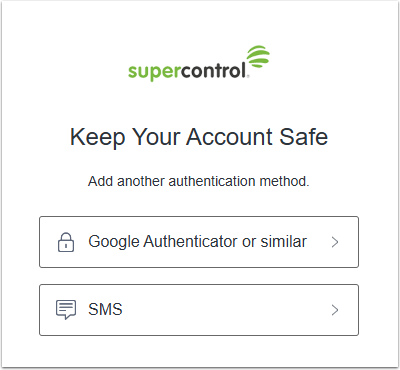
Choose the MFA option you would like to use.
- Display the QR code
SuperControl will display a QR code on screen.
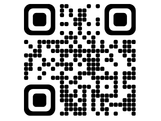
Keep this screen open while you complete the next steps.
- Open your authenticator app
Open the authenticator app on your mobile device.
Select Add Account or Scan QR Code (wording may vary depending on the app you are using).
- Scan the QR code
Use your phone's camera to scan the QR code displayed by SuperControl.
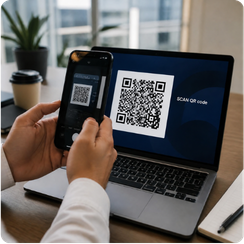
Once scanned, the authenticator app will automatically create a new SuperControl entry.
- Enter the verification code
Your authenticator app will begin generating a six-digit security code.
Enter the code displayed on your mobile device into SuperControl to complete the setup.
- Save your settings
Once the verification code has been accepted, your authenticator app will be connected to your SuperControl login.
You're all set
MFA using an authenticator app is now active for your login.
- Sign in to SuperControl
Signing in with an authenticator app
After setup, signing in is quick and simple:
- Go to the official SuperControl login page. Enter your email address and password.
- Open your authenticator app.
- Locate the SuperControl code.
- Enter the six-digit code displayed.
- Complete the sign-in process.
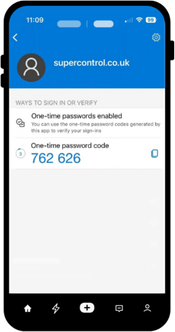
The verification code changes automatically every 30 seconds to help keep your account secure.
Frequently Asked Questions
Can I still use SMS verification?
Yes. If SMS is available for your login, you can choose the verification method that works best for you.
If you'd prefer SMS, follow Set Up Multi-Factor Authentication Using SMS - New Sign-In Experience.
What happens if I change my phone?
If you still have access to your existing authenticator app, follow the app provider's guidance for moving or restoring your accounts to the new device.
If you no longer have access to the device or authenticator app associated with your SuperControl login, contact SuperControl Support.
Can I disable MFA?
We strongly recommend keeping MFA enabled.
If your current verification method no longer works for you, choose another available method or contact SuperControl Support for help.
Don't disable MFA as a way of changing your device or authentication method.