What is SMS verification?
SMS verification sends a time-sensitive security code by text message to your registered mobile phone.
After entering your email address and password, you enter the code received by SMS to verify your identity.
This provides an additional layer of protection because your password alone is not enough to complete the sign-in process.
Why choose SMS verification?
SMS may suit you if you:
- Prefer to receive verification codes by text message
- Don't want to install an authenticator app
- Have reliable mobile reception
- Can access your registered phone when signing in
Set up MFA using SMS
- Sign in to SuperControl
- Go to the SuperControl login page
- Enter the email address associated with your SuperControl login and your password, then select Continue.
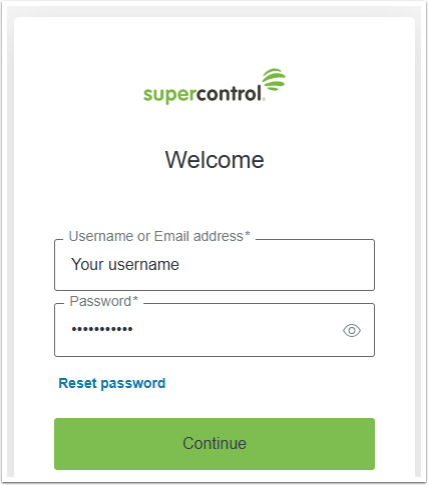
Forgotten your password?
- Choose SMS as your MFA method
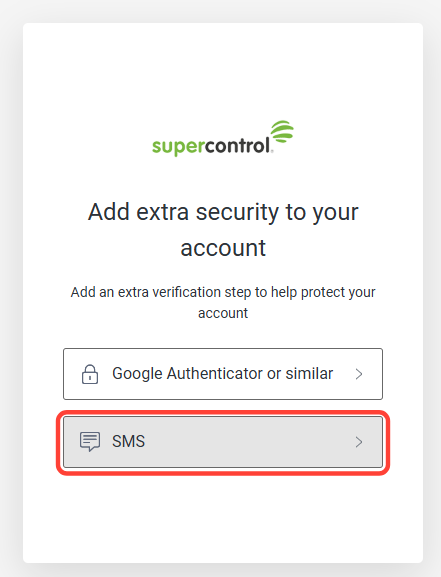
If MFA hasn't already been set up for your login, you will see:
Add extra security to your account
Select SMS.
- Enter your mobile number
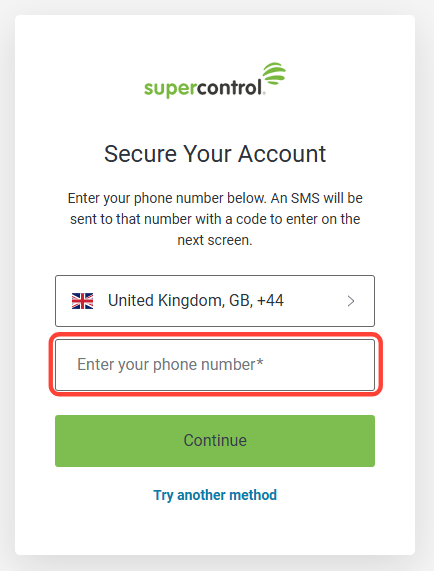
The Secure Your Account screen will appear.
- Check that the correct country and country code are selected.
- Enter the mobile number you want to use.
- Check the number carefully.
- Select Continue.
- Check your phone for the SMS
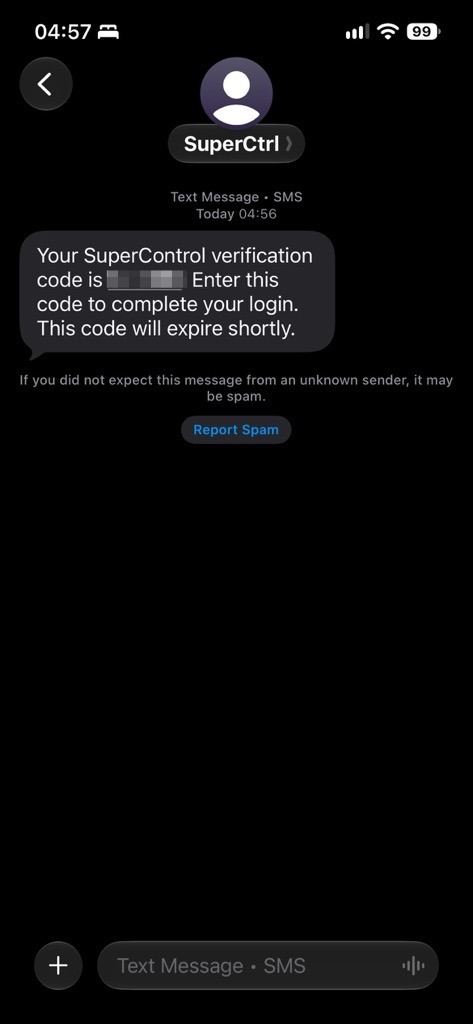
SuperControl will send a time-sensitive verification code to the mobile number you entered.
The SMS will contain a six-digit verification code and confirm that the code will expire shortly.
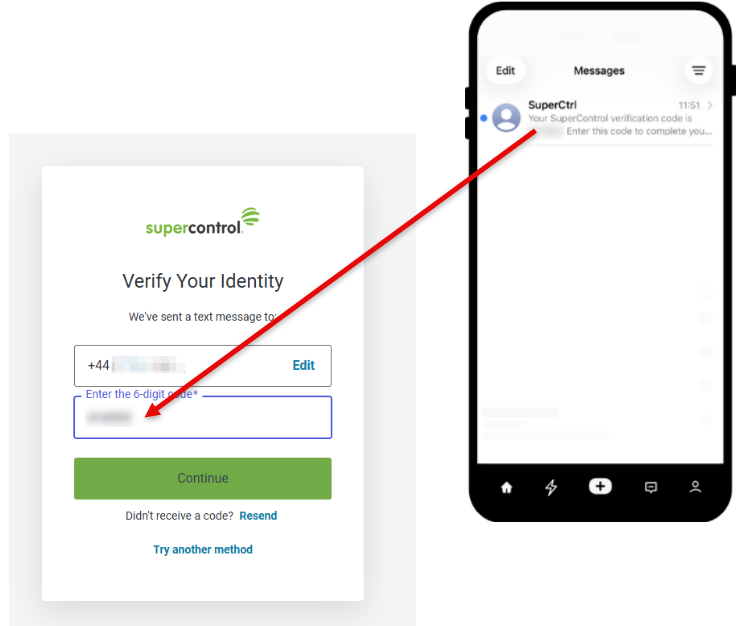
- Enter the verification code
- Return to the SuperControl sign-in screen.
- Enter the six-digit code received by SMS.
- Select Continue.
- Complete setup
Once the code has been accepted, SMS verification is connected to your SuperControl login and you can continue into your account.
You're all set
MFA using SMS is now active for your login.
When SMS verification is required, a time-sensitive security code will be sent to your registered mobile number.
Signing in with SMS verification
After setup, signing in is quick and simple:
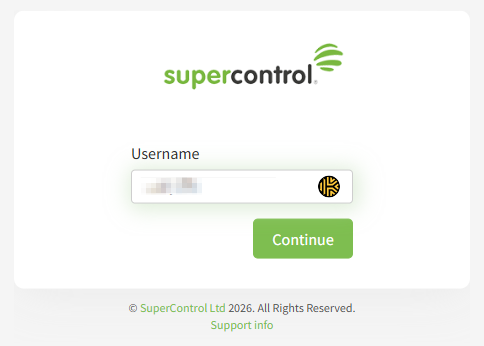
- Go to the SuperControl login page
- Enter your email address.
- Select Continue.
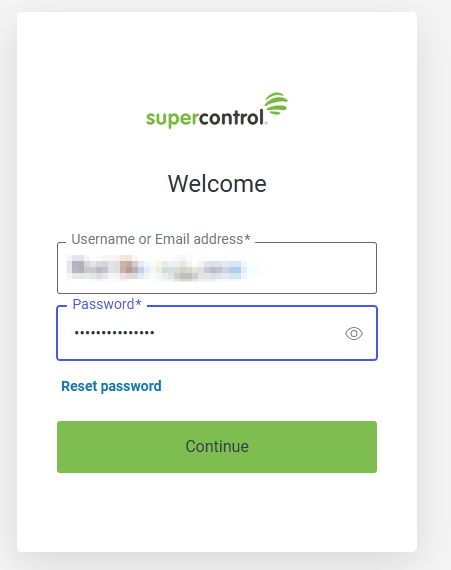
- Enter your password and then select Continue.
- Check your phone for the SMS security code.
- Enter the code on the Verify Your Identity screen.
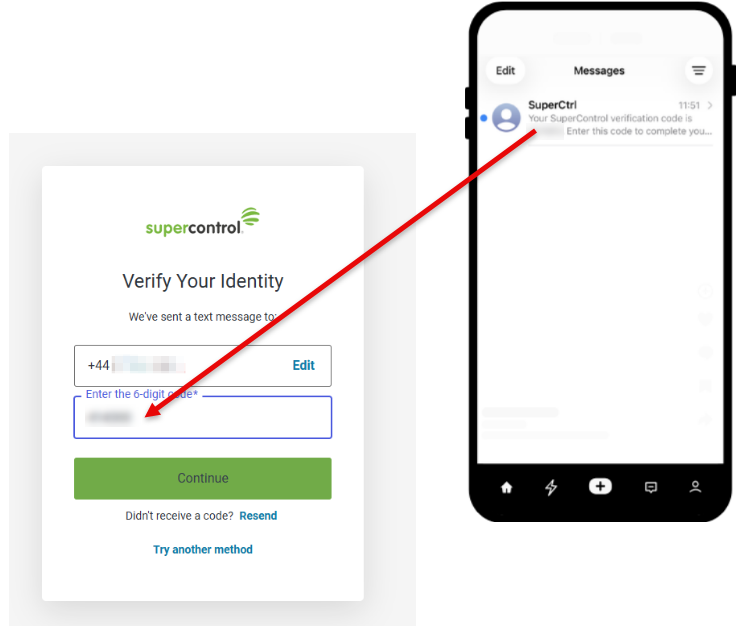
- Select Submit code.
- If successful, you will have access to your SuperControl account and will be directed to your Homepage.
If your SMS code does not arrive
SMS delivery can occasionally take a few moments.
Before requesting another code:
- Check that your phone has mobile reception
- Check that your phone can receive SMS messages
- Make sure you're using the phone registered for your login
- Check whether a message has already arrived
If the code still hasn't arrived, select Resend.
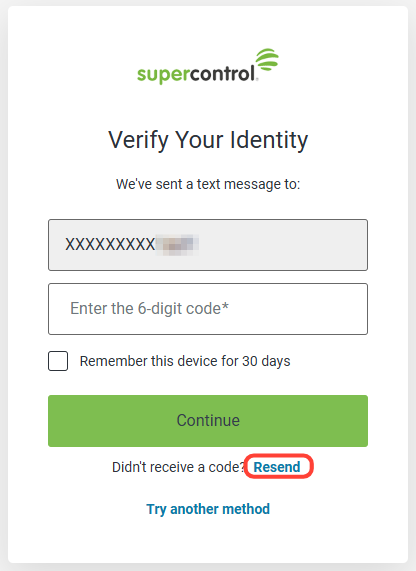
A new code will be sent to your registered mobile number.
Remember this device for 30 days
On the Verify Your Identity screen, you may see the option:
Remember this device for 30 days
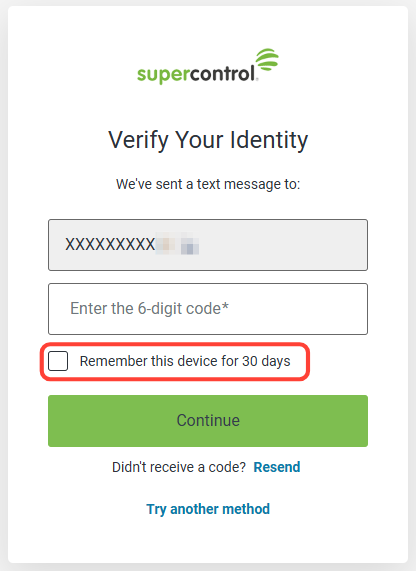
Select this option if you are using a trusted personal or work device and want to reduce how often you are asked to complete MFA verification.
Frequently Asked Questions
What if I enter the wrong mobile number?
If you cannot complete setup because the number is incorrect, return to the previous step if that option is available and correct the number.
If you cannot return to the number-entry screen, contact SuperControl Support for assistance.
What if I can't receive an SMS?
Wait a few moments for the text message to arrive, then check:
- Your phone has mobile reception
- Your phone can receive text messages
- You're using the correct mobile device
If the code has not arrived, select Resend code on the Security Challenge screen to request a new verification code.
Can another user set up SMS verification for me?
Each user should set up and manage their own MFA method using a mobile phone and email address they can access.
This helps ensure that only the authorised user can complete verification when signing in.
What happens if I change my mobile number?
If you no longer have access to the mobile number used for MFA, please contact SuperControl Support.
For security, we will need to verify your identity before resetting MFA on your login. Once MFA has been reset, you will be asked to set it up again the next time you sign in. You can then register your new mobile number or choose an authenticator app.
Each user must contact us about their own login. Another user cannot request an MFA reset on their behalf.
Can I switch from SMS to an authenticator app?
If you're setting up MFA for the first time, select Google Authenticator or similar on the Add extra security to your account screen instead.
If SMS is already configured and you need to change your MFA method, contact SuperControl Support if you cannot see an option to make the change yourself.
Which authentication method should I choose?
If available, authenticator applications are often preferred because they do not rely on mobile phone reception and can provide a more consistent sign-in experience.
Related Articles
Sign in
Use an authenticator app
Understand MFA
Keep your account secure
Need help?