Login and password problems
I don't recognise the sign-in page
The New Sign-In Experience looks different from the existing SuperControl login page.
Check that:
- The page displays the SuperControl logo.
- The heading says Welcome.
- The main button says Continue.
- The website address begins with
auth.supercontrol.co.uk.
If the website address looks unfamiliar or suspicious, don't enter your login details.
Follow: Which Sign-In Guidance Should I Follow? to compare the two login experiences.
My password-reset email hasn't arrived
Check:
- The email address entered is correct.
- Your junk or spam folder.
- Whether the email has been delayed.
If you request another password-reset email, use the most recent reset link.
If you can no longer access the registered email address, contact Support.
My password-reset link doesn't work
Password-reset links expire after 15 minutes.
Request another reset email and use the most recent link.
My password isn't accepted
- Make sure you're using the correct email address.
- Enter your password again carefully.
- Check that Caps Lock isn't enabled.
- If you're unsure of the password, select Reset password.
Important
Avoid repeatedly trying passwords you're unsure about. After repeated failed attempts, the login can be blocked. [
My login has been blocked
After three incorrect password attempts, your login may be blocked and we will send you an email.
Please follow the steps in the follow up email.
If you're still unable to access your account after trying these options, contact SuperControl Support.
MFA problems
I don't have mobile reception
If Try another method appears, select it to see the alternative verification methods available for your login.
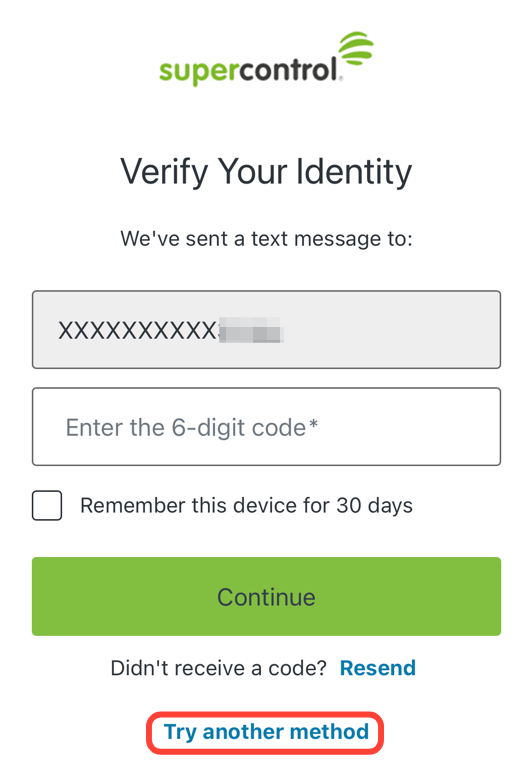
If you cannot access any available verification method, contact SuperControl Support.
I haven't received my SMS verification code
Before requesting another code:
- Check your mobile reception.
- Check that your phone can receive SMS messages.
- Make sure you're using the phone associated with your login.
- Allow a few moments for delivery.
Select Resend to request another code.
Important
Enter the most recent code received. Older codes may no longer work.
My authenticator-app code isn't working
Check that:
- You're using the correct SuperControl account entry in your authenticator app.
- You're entering the current six-digit code.
- The code hasn't changed while you're typing it.
- Your mobile device's date and time are set automatically.
If a code is about to expire, wait for the next code and enter that one instead.
If you have lost access to the app or device, use the next section.
I've lost or replaced my phone
If you can use another verification method presented by the sign-in screen, use that method to access your account.
If you cannot access any of your MFA methods, contact SuperControl Support.
For your security
We may need to verify the request before resetting MFA for the affected login.
Once MFA has been reset, you'll be prompted to set it up again during your next sign-in.
I've changed my mobile number
If you can no longer receive verification codes using the mobile number associated with your login, contact SuperControl Support.
Once your request has been verified and MFA reset, you'll be prompted to set up your MFA method again at your next sign-in.
I want to change from SMS to an authenticator app
If you're setting up MFA for the first time, select Google Authenticator or similar instead of SMS.
If MFA is already configured and you can't see an option to change your method, contact SuperControl Support.
I keep being asked to complete MFA
If Remember this device for 30 days appears, select it only on a trusted personal or work device.
Clearing cookies, using a different browser or signing in from another device may mean you're asked to verify again.
Account-security problems
I received a verification code that I didn't request
Don't share or enter the code.
If you weren't attempting to sign in, someone else may have entered your login details.
Reset your SuperControl password and contact SuperControl Support if you're concerned about unauthorised access.
I think someone else has accessed my account
- Reset your password immediately.
- Check that your MFA method is still secure and accessible only to you.
- Review the users with access to your SuperControl account.
- Check for unexpected account changes.
- Contact SuperControl Support.
Still need help?
If the steps above haven't resolved the problem, contact SuperControl Support.
When contacting us, tell us:
- The email address associated with your SuperControl login.
- Which sign-in screen you're seeing.
- The step at which the problem occurs.
- The exact error message, if one is displayed.
Related articles
Sign in
Password
MFA setup
- Set Up Multi-Factor Authentication (MFA) Using an Authenticator App - New Sign-In Experience
- Set Up Multi-Factor Authentication (MFA) Using SMS - New Sign-In Experience