- Go to the SuperControl sign-in page
Go to the official SuperControl login page.
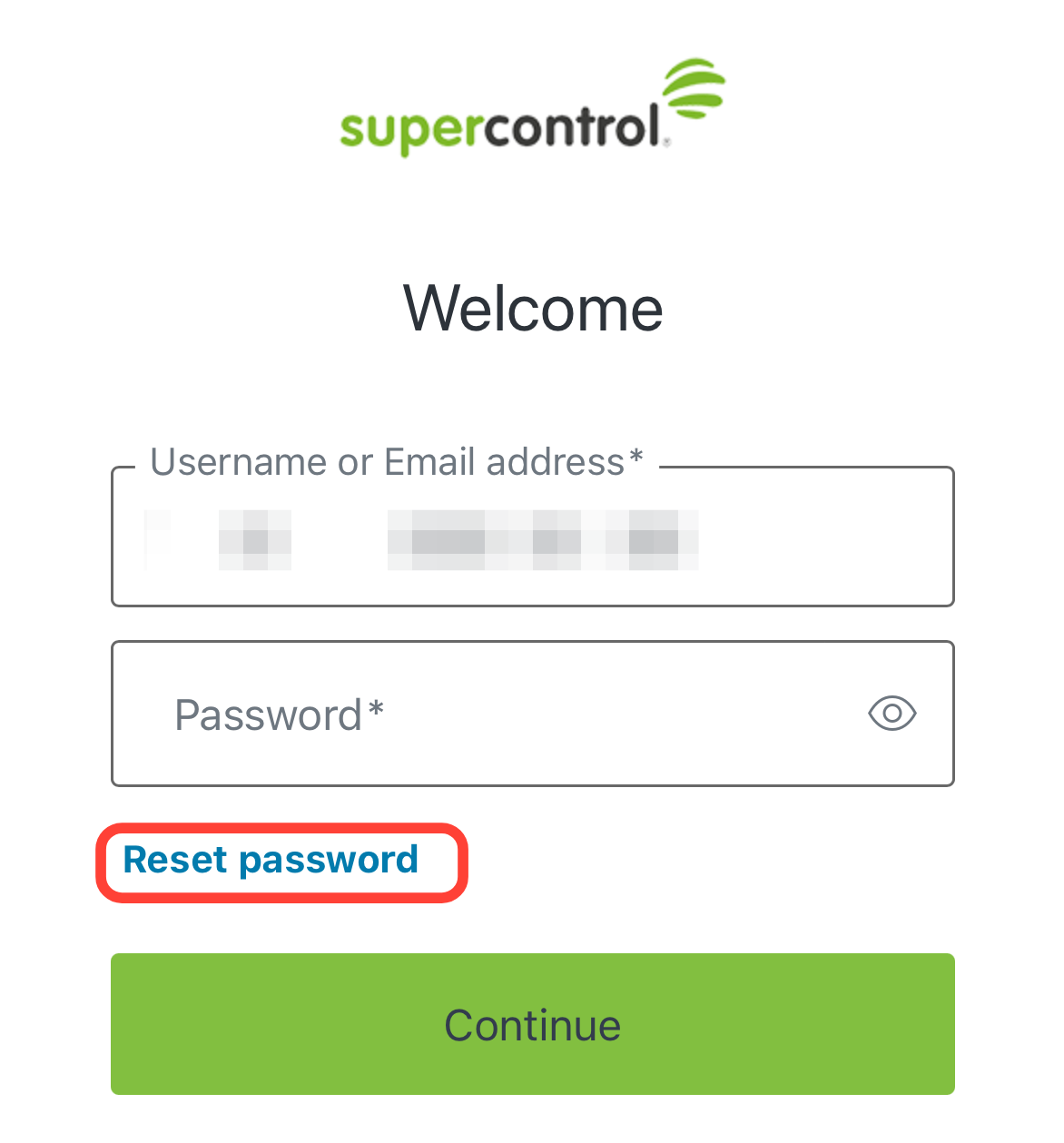
On the Welcome screen, select Reset password.
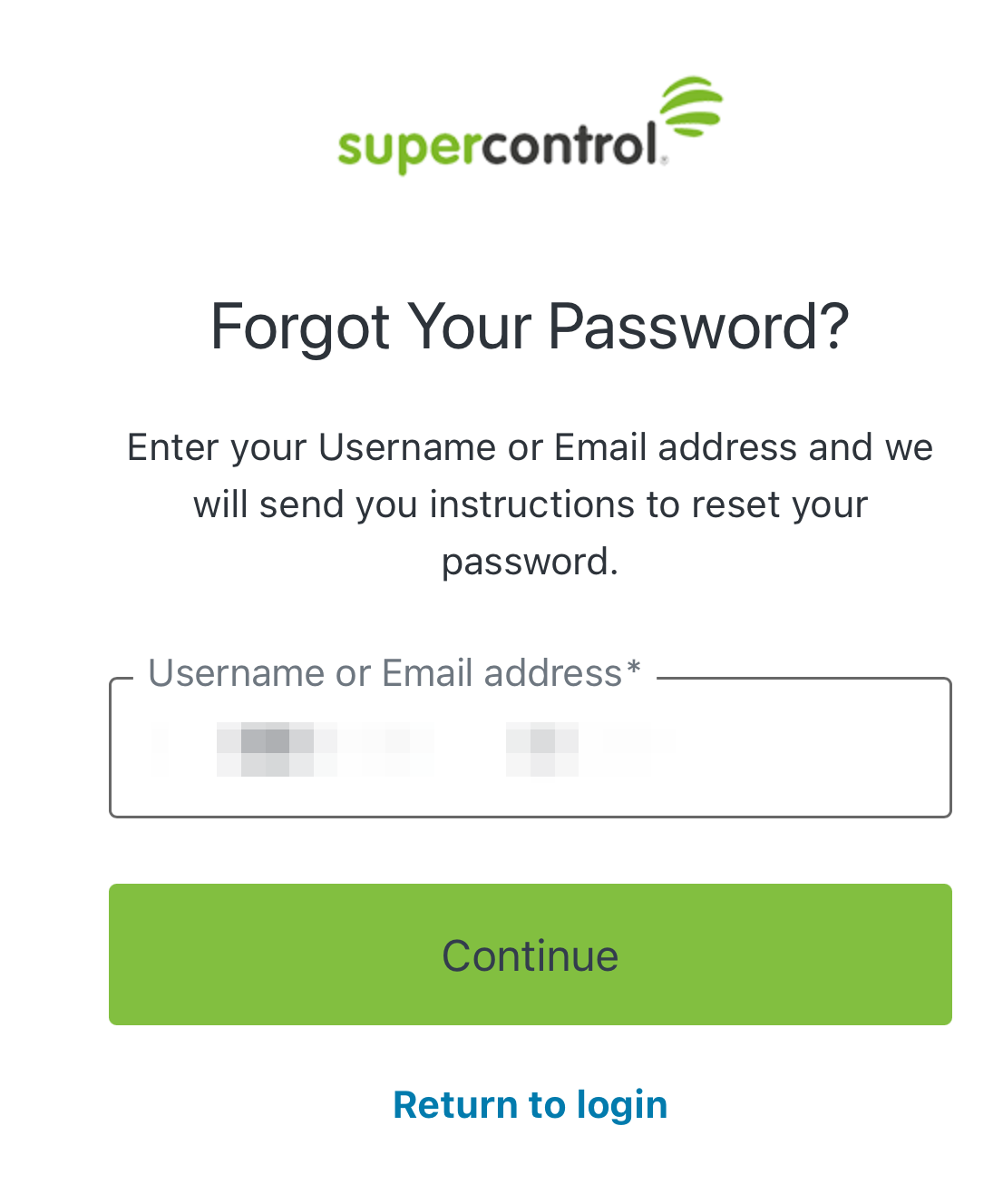
- Enter your email address
Enter the email address associated with your SuperControl login and submit the request.
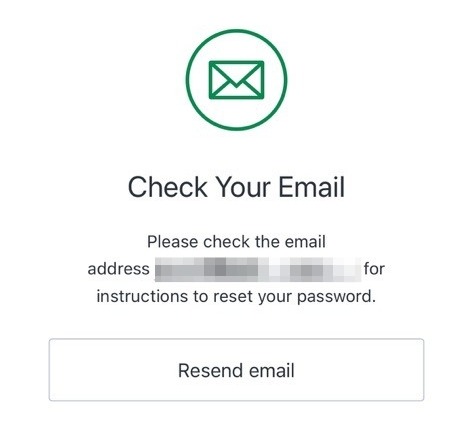
- Check your email
A password-reset email will be sent to your registered email address.
Open the email and follow the reset link.
- Follow the link in the password-reset email
Open the password-reset email and select the link provided.
You'll be taken to the secure SuperControl password-reset page at
auth.supercontrol.co.uk.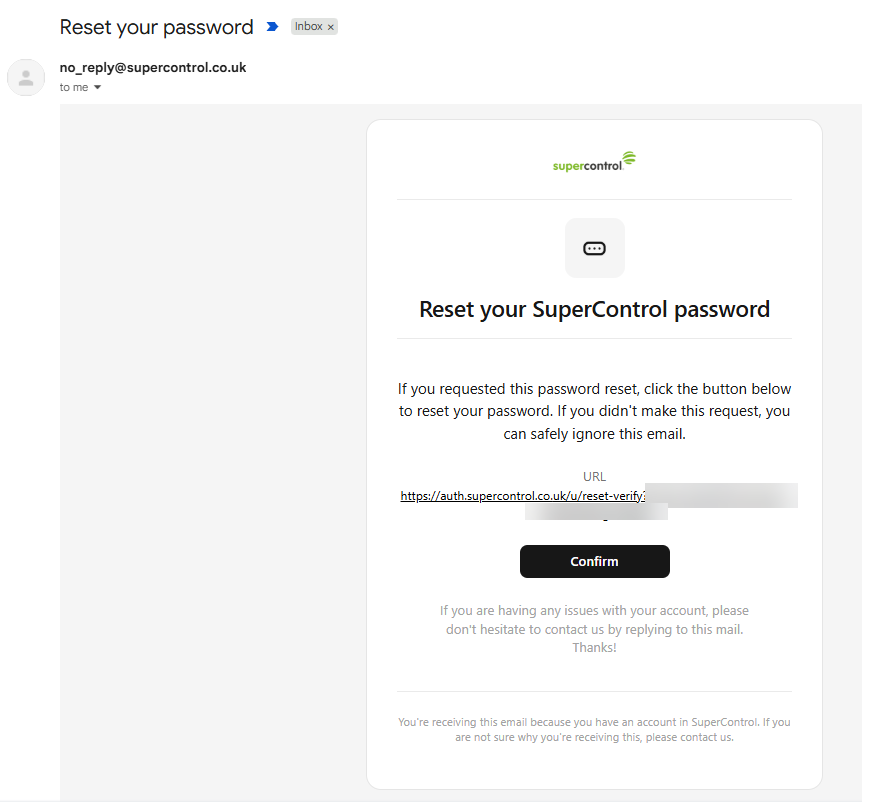
- Create your new password
Enter and confirm your new password.
Your new password must:
- Be at least 12 characters
- Include an uppercase letter
- Include a lowercase letter
- Include a number
- Include a special character
- Not be one of your previous 24 passwords
Your password may also be rejected if it matches a commonly used or known compromised password.
- Return to the login page
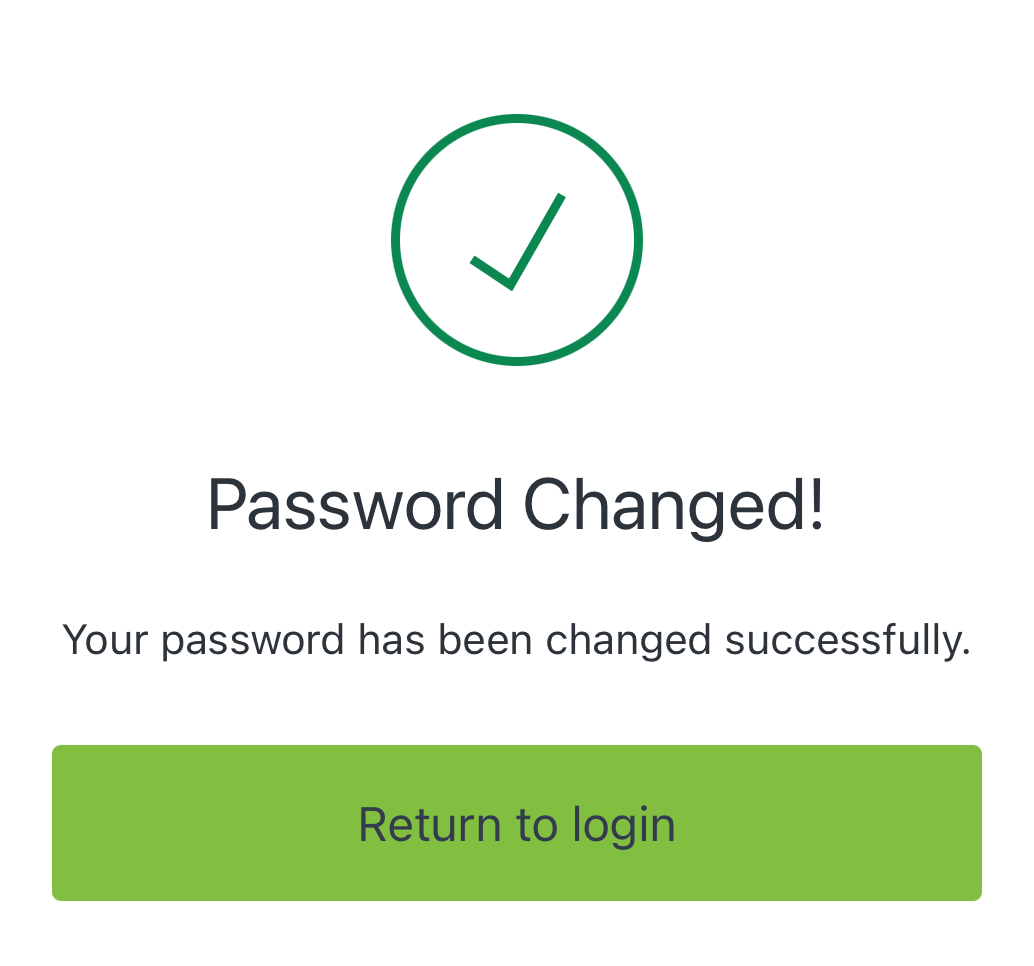
Once the password has been successfully changed, you'll see:Password Changed!
- Sign in with your new password
Enter the email address associated with your SuperControl login and your new password.
Complete MFA if prompted.
You're all set
Your new password is active and you can continue signing in to SuperControl as normal.
For further sign-in guidance, follow:
Troubleshooting
My password-reset email hasn't arrived
Check:
- You've entered the correct email address.
- Your junk or spam folder.
- Whether the message has been delayed for a few minutes.
If you request another reset email, use the most recent message sent to you.
If you can no longer access the email address associated with the login, contact SuperControl Support.
▸ My password-reset link has expired
Password-reset links are valid for 15 minutes.
Return to the sign-in page and request another password-reset email.
Use the most recent reset email you receive
My new password isn't accepted
Check that the password meets the requirements listed above.
The password may also be rejected if:
- You've used it previously.
- It matches a commonly used password.
- It has appeared in known compromised-password data.
Try creating a different strong, unique password.
My account says it is blocked
If your login has been blocked after repeated incorrect password attempts, check your email for an unblock message.
You can also complete the password-reset process to regain access.
For further guidance, follow Troubleshooting the New Sign-In Experience.
Related articles
Sign in
Keep your account secure
MFA
Need more help?