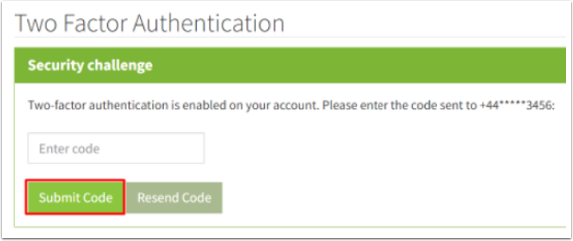
Two-Factor Authentication (2FA) must be used to prevent unauthorised access to your account.
With 2FA enabled, your account will be more secure when logging in, updating personal details, or accessing sensitive data. An additional verification step will be required during login. Instead of just entering your credentials, you’ll also need to input a unique, one-time code sent to you via SMS. This ensures that even if someone obtains your password, they won’t be able to access your account without the verification code.
How do I enable this?
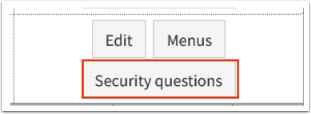
To enable this on your account go to Admin> Login Users> Security Questions. If you have multiple users on your account this will work on a Per User basis so this will need to be enabled separately for each individual user. Only the relevant user has access to their Security measures via the Security questions button.
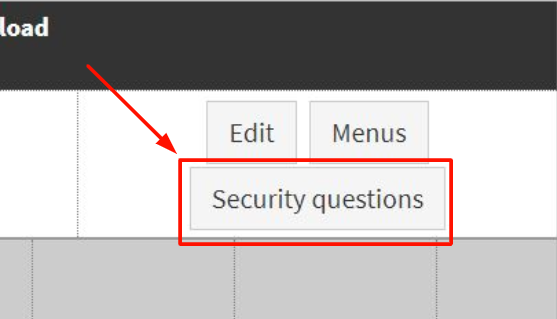
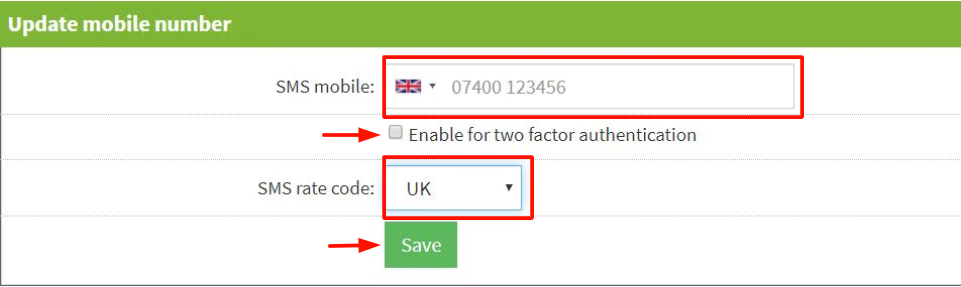
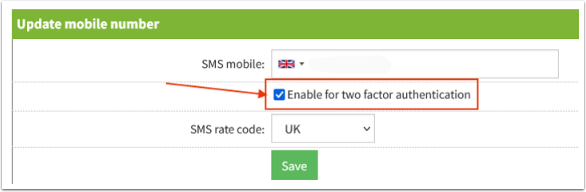
Underneath the security questions settings you will see SMS settings under heading Update mobile number, simply:
- Enter the phone number to which you want to receive the authentication code each time you log in.
- Tick the "Enable Two Factor Authentication" tick box.
- Ensure you have the correct rate code for SMS, either UK or overseas.
- Click save.
You are now enabled for Two Factor Authentication.
The next time you are logged out and need to log back in, the Two Factor will be in place.
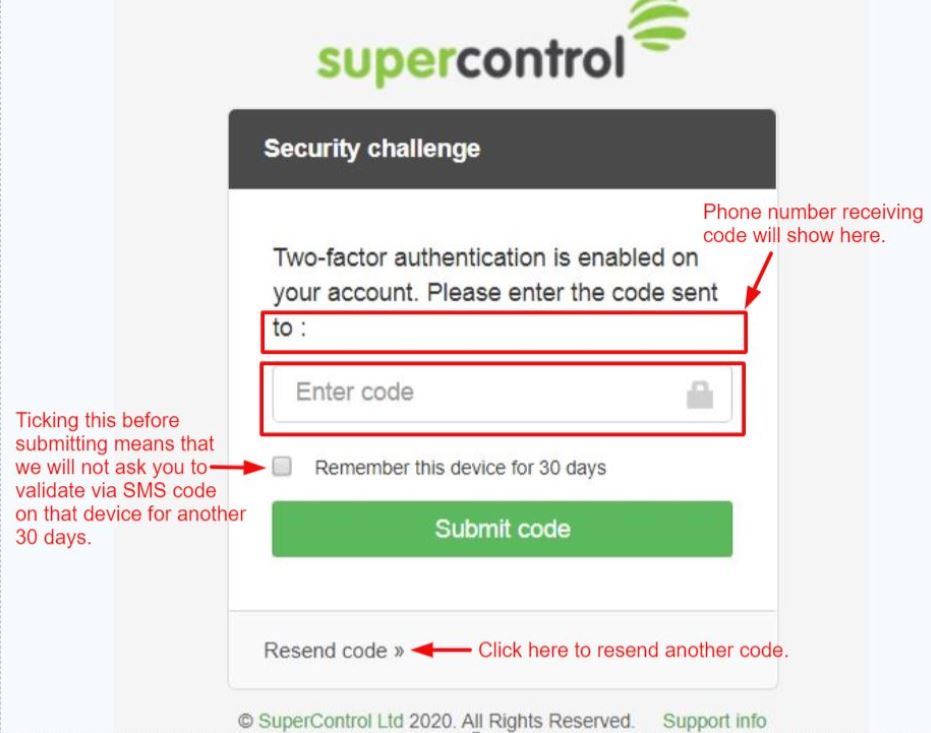
Once you have entered your login credentials this will show:
Enter your unique code that is sent to your mobile device and submit.
Which parts of my account does Two Factor apply to?
If Two Factor Authentication is enabled on your account this is where you will be prompted to enter an SMS code:
- When logging into your account.
- When changing any personal details in Admin> General details. i.e email, telephone number and address.
- When downloading your database in Admin> Maintenance> Download Database.
Two Factor troubleshooting - Please read
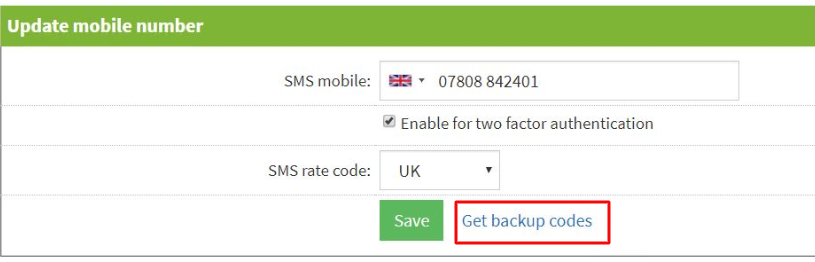
Click on this link and it will open up a pop-up. You will be prompted to enter in the password, this is the password you use to log in to Supercontrol. Enter the password ad click validate.
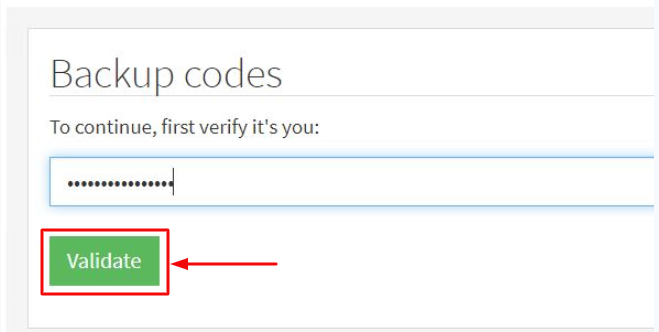
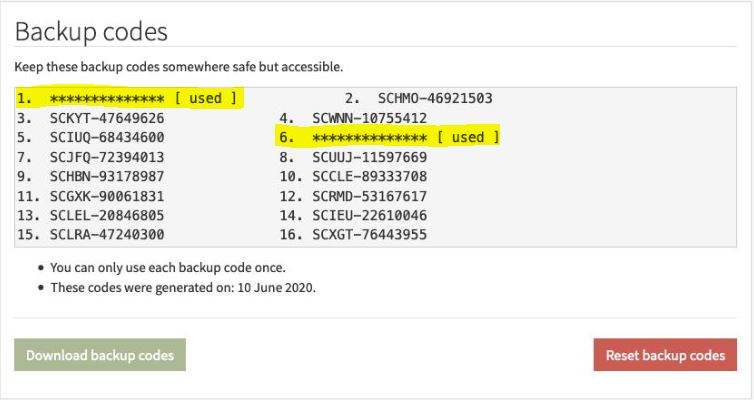
This will then allow you to a) View your backup codes b) Download your backup codes.
There will be 16 backup codes and each can only be used once.
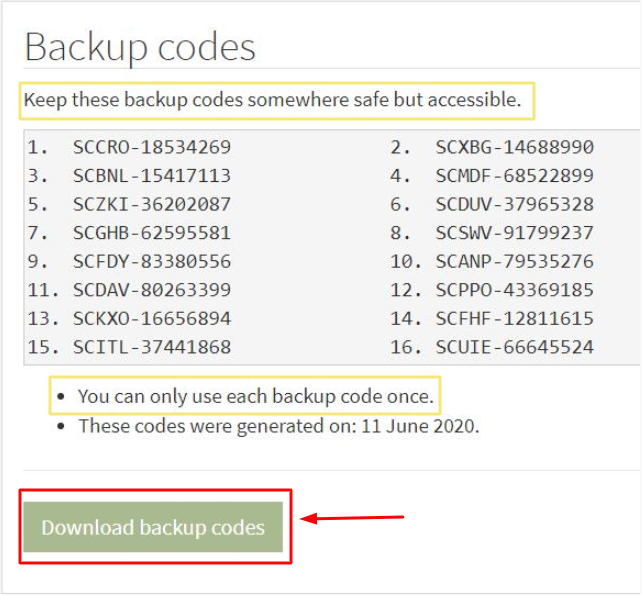
Downloading your backup codes will produce a text file that you can keep somewhere safe. If you print these codes please put them in a safe or a locked drawer.
You can also reset your backup codes by simply going back to the backup codes modal and click the reset button shown below.
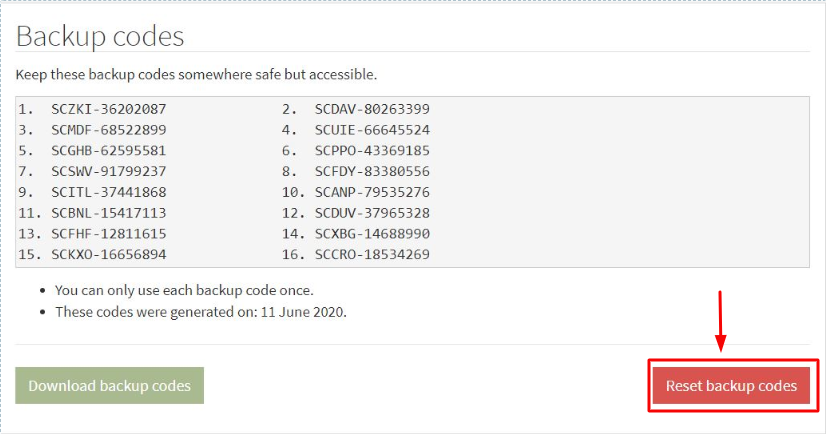
Reasons you would re-set your backup codes for the following reasons:
- If you have lost your codes
- If your codes have been compromised
- If you have used them all previously and need to download new ones.
As backup codes that you use, we will remove them from the list.
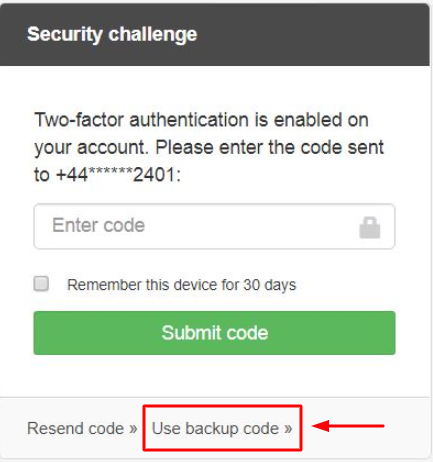
Now when you log in, if you do not receive the SMS then you can use your backup code by clicking on the new link that has appeared since you downloaded your codes as shown below.
You can then enter your backup code and Submit to log in, or link back to the SMS code page.
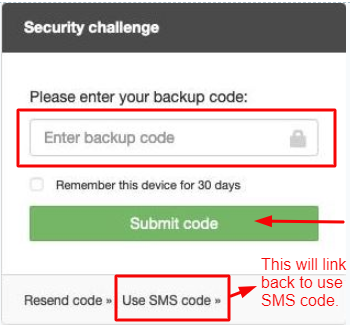
Please note: when entering a backup code the *Remember this device for 30 days* will be disabled as you cannot remember a device when using a backup code.
Remember this device for 30 days?
Ticking this option means we will remember the device and the browser you are using and we will not ask you to validate via SMS for another 30 days. As long as nothing changes with your device / browser and our cookies remain.
How do I disable this?
1. Go to Admin> Login Users> Security Questions
2. Untick the "Enable Two Factor Authentication" tick box.
3. Click "Save".
4. Enter the security code to confirm the changes.
5. Click "Submit Code".