What you will need
Before you begin:
- Your property must be connected to Booking.com using the Full Content API connection.
- The Booking.com property listing must have been created through SuperControl.
- You must be able to access the property's Booking.com settings in SuperControl.
- You should know which Booking.com cancellation policy you want to offer.
- Check the property's general Accept online bookings setting, as this is used to provide the default latest booking time when a Booking.com cancellation policy booking window has not previously been set.
Using the Legacy/Rates & Availability connection?
You will not see these booking window settings in SuperControl, rather you will need to make adjustments directly on the Extranet if you would like to use this functionality. This functionality is only available for Booking.com listings created through SuperControl using the Full Content API connection.
How to set booking windows for your Booking.com cancellation policies
- Check the property's general online booking setting
Go to the property's general settings in SuperControl.
Find Accept online bookings.
If this is followed by a number and the words days prior to arrival, make a note of the number.
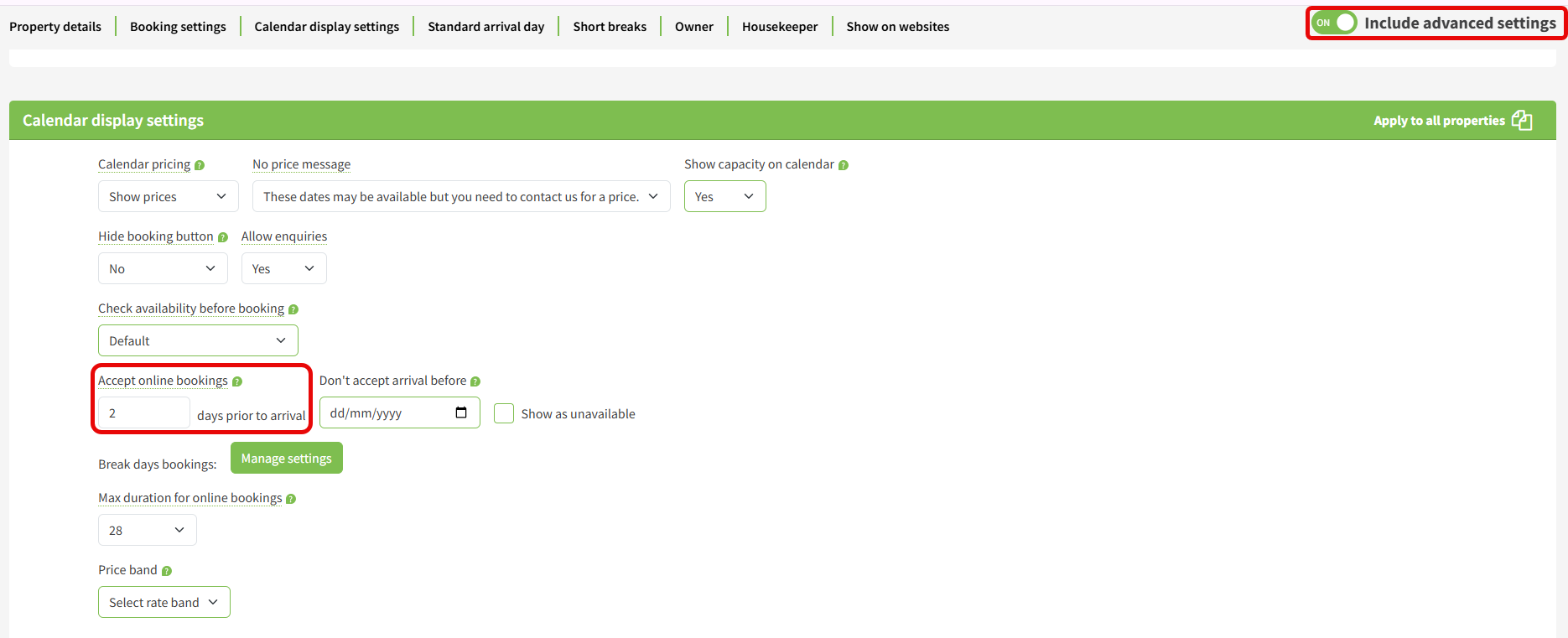
For example:
Accept online bookings 2 days prior to arrival
This is the property's general online booking setting. It is not the Booking.com cancellation policy booking window.
However, when a booking window has not previously been configured for a Booking.com cancellation policy, the number of days entered here is used as the default for the latest booking time.
If no days have been set under Accept online bookings, the latest booking time for the Booking.com cancellation policy defaults to No limit.
- Open the Booking.com property settings
Open the Booking.com Property Settings page for the property.
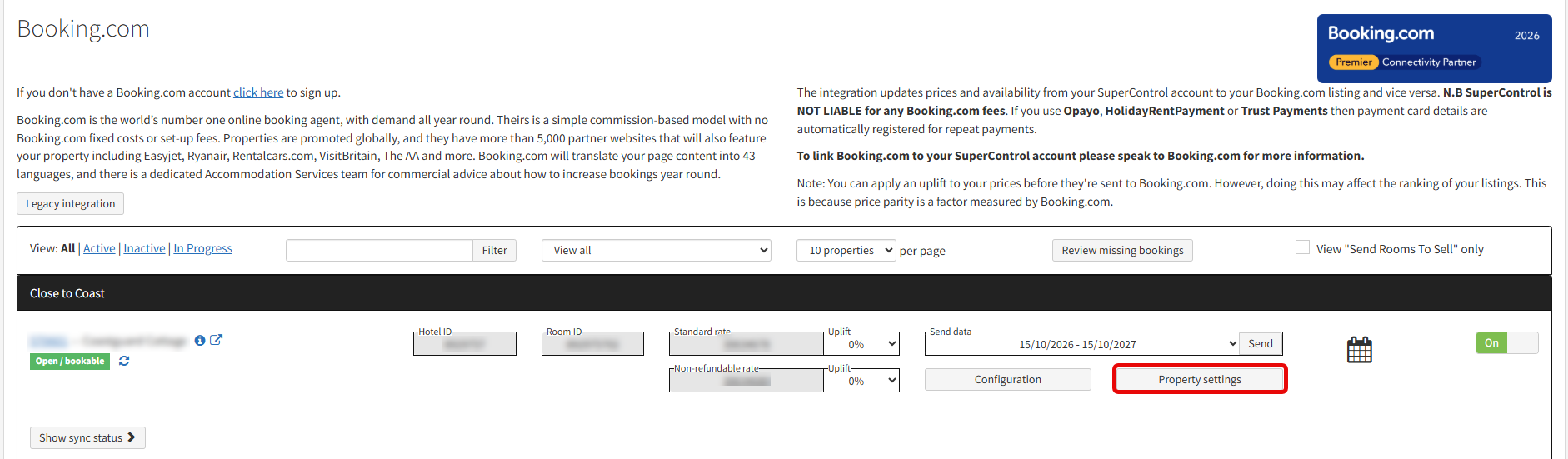
Find the Cancellation policy section.
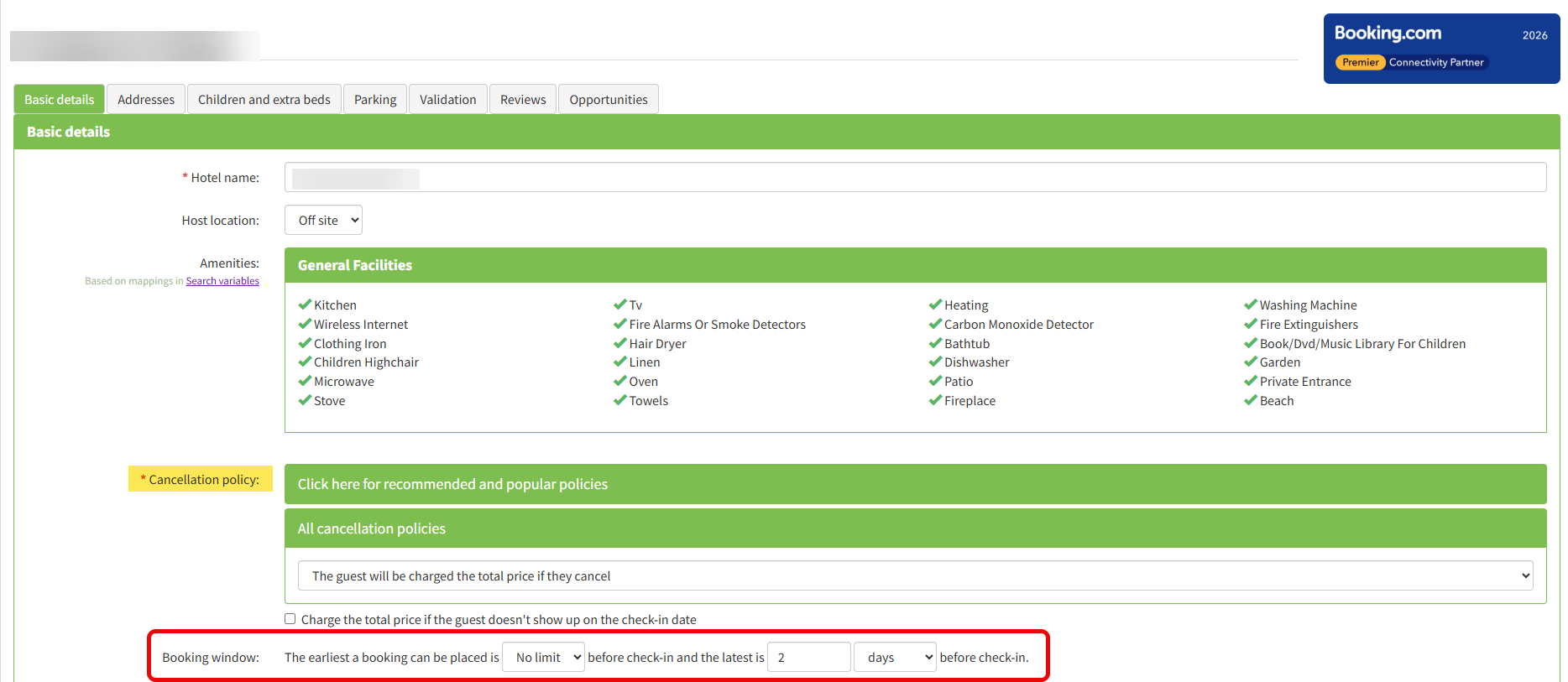
The Booking window settings are displayed directly underneath the cancellation policy once you select a policy.
The booking window settings displayed here apply to the property's Booking.com cancellation policies.
- Select a Booking.com cancellation policy
Select the Booking.com cancellation policy you want to use.
The booking windows displayed depend on the type of cancellation policy selected.
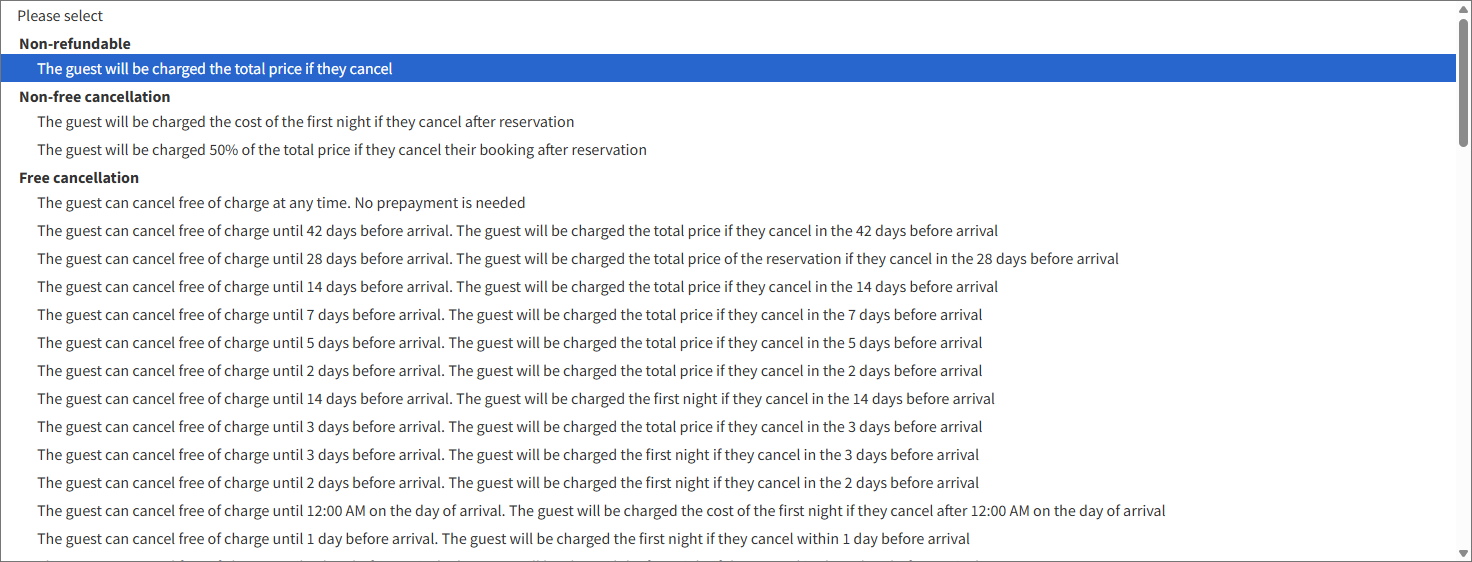
- If you select the non-refundable cancellation policy
One booking window is displayed.
This controls when the non-refundable Booking.com cancellation policy is available to guests.
The booking window is shown as a sentence beginning:
The earliest a booking can be placed is..

- If you select a flexible cancellation policy

Two booking windows are displayed:
- The booking window for the non-refundable cancellation policy.
- A second booking window for the flexible cancellation policy you selected.
The non-refundable booking window appears first.
The second booking window starts with the name of the selected flexible cancellation policy. This helps you identify which Booking.com cancellation policy the booking window belongs to.
If you select a different flexible cancellation policy, the second booking window is relabelled with the newly selected policy.
- If you select the non-refundable cancellation policy
- Set the earliest booking time
For the relevant Booking.com cancellation policy, use The earliest a booking can be placed is... to control how far in advance a guest can make a booking under that policy.
Choose from:
- Hours
- Days
- Months
- No limit
If you select hours, days or months, enter a whole number.
The smallest number you can enter is 1.
Selecting No limit removes the restriction on how far in advance the Booking.com cancellation policy can be booked. The number box is hidden when No limit is selected.
Repeat this step for the flexible cancellation policy if you have selected one.
- Set the latest booking time
For the relevant Booking.com cancellation policy, use The latest is... to control how close to check-in a guest can still book under that policy.
Choose from:
- Hours
- Days
- Months
- No limit
If you select hours, days or months, enter a whole number.
If a booking window has not previously been configured for the Booking.com cancellation policy, the latest booking time defaults to the number of days specified under Accept online bookings in the property's general settings.
If no number of days has been set there, the latest booking time defaults to No limit.
Selecting No limit leaves the latest side of that Booking.com cancellation policy's booking window unrestricted.
Repeat this step for the flexible cancellation policy if you have selected one.
- Check each Booking.com cancellation policy booking window
For each Booking.com cancellation policy, the earliest booking time must be at least as long as the latest booking time.
For example:
Earliest booking time: 6 months before check-in
Latest booking time: 2 days before check-in
This means the Booking.com cancellation policy can be available from six months before arrival until two days before arrival.
The earliest booking time cannot be closer to check-in than the latest booking time.
Some unit options are automatically greyed out when selecting them would create an invalid booking window for that Booking.com cancellation policy.
If you leave a field where the earliest booking time is shorter than the latest booking time, that side is corrected automatically.
- Save the Booking.com cancellation policy settings
Once you are happy with the booking windows, save the property's Booking.com settings.
If you save No limit, that side of the relevant Booking.com cancellation policy booking window remains unrestricted.
If you keep the default number of days taken from the property's general Accept online bookings setting, that number of days is saved as the latest booking time for the Booking.com cancellation policy.
What happens next
The booking windows you saved control when each Booking.com cancellation policy is available to guests.
If you selected only the non-refundable cancellation policy, one booking window applies.
If you selected a flexible cancellation policy, separate booking windows can apply to:
- The non-refundable Booking.com cancellation policy.
- The selected flexible Booking.com cancellation policy.
This gives you control over when each Booking.com cancellation option is available without changing the property's general Accept online bookings setting.
Frequently asked questions
Do these booking windows apply to all online bookings?
No. These booking windows apply specifically to the cancellation policies configured in the property's Booking.com settings.
They do not replace the property's general Accept online bookings setting.
Why can't I see the Booking window settings?
The booking window settings remain hidden until you select a Booking.com cancellation policy.
Why can I see two booking windows?
If you select a flexible Booking.com cancellation policy, separate booking windows are displayed for:
- The non-refundable cancellation policy.
- The flexible cancellation policy you selected.
The second booking window starts with the name of the selected flexible policy.
Why would I use different booking windows?
You may not want every Booking.com cancellation policy to be available for the same period before arrival.
For example, you could make a flexible cancellation policy available further in advance while making the non-refundable cancellation policy available closer to arrival.
Separate booking windows give you greater control over when each policy and its associated booking option are available to guests.
Why is the non-refundable booking window still displayed when I select a flexible policy?
The non-refundable and flexible Booking.com cancellation policies can each have their own booking restrictions.
Selecting a flexible cancellation policy therefore displays one booking window for the non-refundable policy and another for the selected flexible policy.
Where has the number box gone?
The number box is hidden when you select No limit, because there is no number to enter for an unrestricted booking window.
Select hours, days or months to display the number box again.
Why is an option greyed out?
An option is greyed out when selecting it would make the earliest booking time shorter than the latest booking time.
Where did the default number of days come from?
If you have not previously configured the booking window for a Booking.com cancellation policy, the latest booking time uses the number of days set under Accept online bookings in the property's general settings.
The Accept online bookings setting is found on the property settings page, not the Booking.com Property Settings page.
Does changing the Booking.com booking window change Accept online bookings?
No. The Booking.com booking windows apply to the cancellation policies configured in the property's Booking.com settings.
The property's general Accept online bookings setting provides the initial default for the latest booking time when a Booking.com cancellation policy booking window has not previously been set.
What does No limit mean?
No limit means there is no restriction on that side of the relevant Booking.com cancellation policy booking window.
What is the maximum booking window?
The maximum booking window for a Booking.com cancellation policy is 12 months.
For this setting, one month is treated as 30 days. Therefore, 12 months is equivalent to 360 days or 8,640 hours.